













Let’s Fix the Stuttering of Your Bluetooth Headphones
Your music cuts out mid-chorus. One earbud randomly goes silent while the other keeps playing. The voice on your work call suddenly turns into a robotic crackle. Before you throw your wireless earbuds at the wall or rush to a service center, take a breath. In most cases, you can fix this problem yourself — so let's break down why Bluetooth stutters and how to stop it.
Contents
Why Does Bluetooth Stutter?
Bluetooth works like a tiny, low-power radio station. It operates on the 2.4 GHz frequency band — the exact same band used by most Wi-Fi routers, smartwatches, baby monitors, and wireless speakers. When there are too many devices around, these signals fight for airspace, and your connection starts to trip over itself.
Physical distance and obstacles also play a massive role. The further your phone is from your headphones, the higher the risk of dropouts. Even the human body (which is mostly water) or a thick winter jacket can weaken the signal. Sometimes, simply moving your phone from your back jeans pocket to a chest pocket instantly stabilizes the audio.
Isolating the Problem
Before diving into complex settings, you need to find out what is actually the stutter.
The Quiet Room Test
Test your headphones at home in a quiet room. If the audio is perfectly stable, your headphones are fine. The issue is environmental interference.
Location Test
Does it only stutter at the mall or in the subway? In crowded places, hundreds of Wi-Fi networks and Bluetooth devices are actively clashing. Even premium flagship headphones may stutter under these conditions.
Device Swap
Connect your headphones to a different phone or tablet. If they work flawlessly there, the problem is specifically with your smartphone’s Bluetooth module or settings.
Quick Fixes to Try First
Start with the basics. Many people skip these steps, but they solve the problem 80% of the time.
- Reboot Everything: Restart your phone. Put your TWS earbuds back in their charging case, let them power down completely, and take them out again.
- Re-pair the Device: Delete (or "Forget") the headphones from your phone's Bluetooth menu and pair them from scratch. Sometimes the digital handshake gets corrupted, and a fresh connection is all you need.
- Check the Battery: A low battery forces the Bluetooth module into a low-power state, making it highly unstable.
- Ditch the Case: A thick phone case can severely choke the Bluetooth antenna. Take the case off and see if the stuttering stops.
- Turn Off Power Saving Mode: This mode aggressively limits background wireless activity to save battery, often throttling your Bluetooth connection exactly when you need it.
Advanced Settings That Actually Work (Android Only)
If the simple fixes failed, you need to dive into the system settings. Most of these tweaks require unlocking "Developer Options" on Android. To do that, go to Settings — About Phone — tap "Build Number" seven times.
Note: iPhone users cannot manually change Bluetooth codecs; iOS automatically uses AAC, which is highly stable.
Change the Bluetooth Codec: By default, many Androids use LDAC for high-res audio. However, LDAC requires massive bandwidth. In a crowded area, it will constantly stutter. Go to Developer Options — Bluetooth Audio Codec and switch it to SBC or AAC. Alternatively, set LDAC to "Best Effort," so it dynamically adjusts the bitrate based on signal strength.
Disable Bluetooth A2DP Hardware Offload: This is a surprisingly effective fix for many Android users. Find this toggle in Developer Options, turn it on, and restart your phone.
Disable the HFP Profile: Bluetooth operates in two modes. A2DP is for high-quality stereo music. HFP activates when you use the microphone for calls, dropping the audio quality to a compressed mono signal. If your headphones sound terrible during calls, go to your connected device settings and uncheck "Phone Calls." Your phone’s internal microphone will handle your voice, but your headphones will stay in the high-quality A2DP mode for the audio.
Switch Wi-Fi to 5 GHz: Since Bluetooth shares the 2.4 GHz band with standard Wi-Fi, they often interfere with each other. If your home router supports 5 GHz, connect your phone to that network instead to clear the 2.4 GHz lane for your headphones.
The Final Failsafe: Go Wired
If your wireless headphones work perfectly at home but constantly stutter in the subway or busy city centers, no amount of software tweaking will permanently fix it. The 2.4 GHz radio spectrum in those areas is simply too congested.
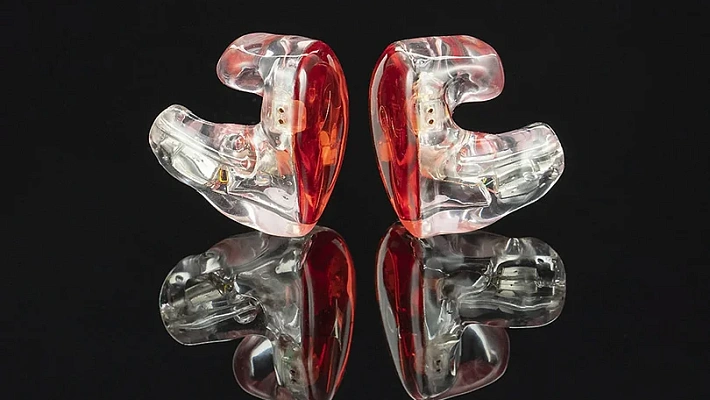
This is exactly why wired headphones are making a massive comeback. A physical cable means zero radio interference, zero lag, and zero battery anxiety. A smart strategy for city life is to keep your wireless earbuds for the quiet office and carry a reliable pair of wired IEMs for the chaotic subway commute.
Remember: If your modern phone lacks a headphone jack, it can’t stop you from going wired. A simple USB-C or Lightning to 3.5mm dongle is all you need!
If you are tired of fighting with dropped signals, drop by the Dr.Head showroom in Dubai. We have an incredible selection of premium wired IEMs that deliver flawless, uninterrupted audio, no matter how crowded the subway gets.