













Why Your AirPods Case Won't Charge (And How to Fix It)
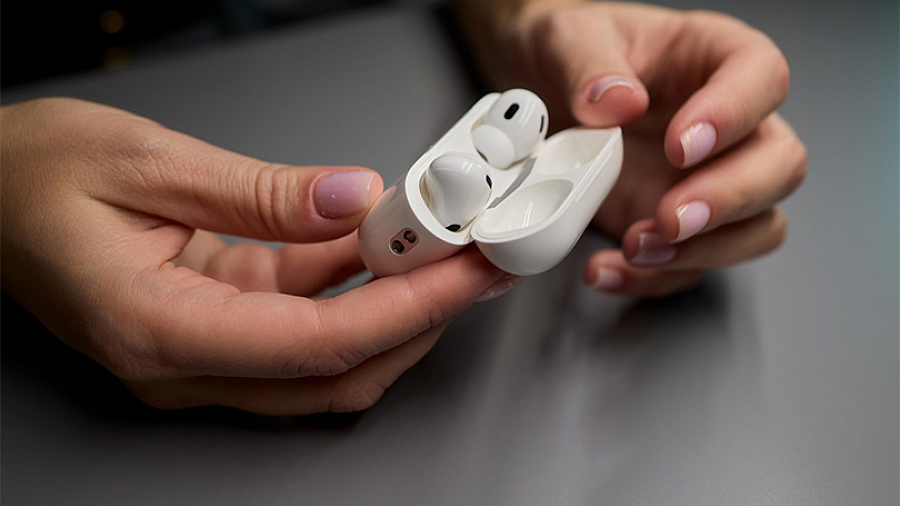
You plug your AirPods in, but that reassuring little status light doesn't pop on. Or maybe you notice the battery percentage is completely frozen. This is a bigger deal than it seems — a dead case means dead earbuds, quickly turning your favorite tech into a useless paperweight.
Let's break down exactly what goes wrong with the charging system and how to bring your AirPods case back to life.
Contents
The Usual Suspects: Why Is It Happening?
Charging issues usually fall into a few specific categories, ranging from a quick fix to a permanent hardware death.
- A Fried Cable or Wall Plug: It is very often the power source, not the case itself. Your cable might be frayed internally, or the power brick might have given out.
- Pocket Lint in the Port: Dust, fabric, and oxidation turn charging into a lottery. Even a microscopic piece of debris in the port can completely block the metal contacts.
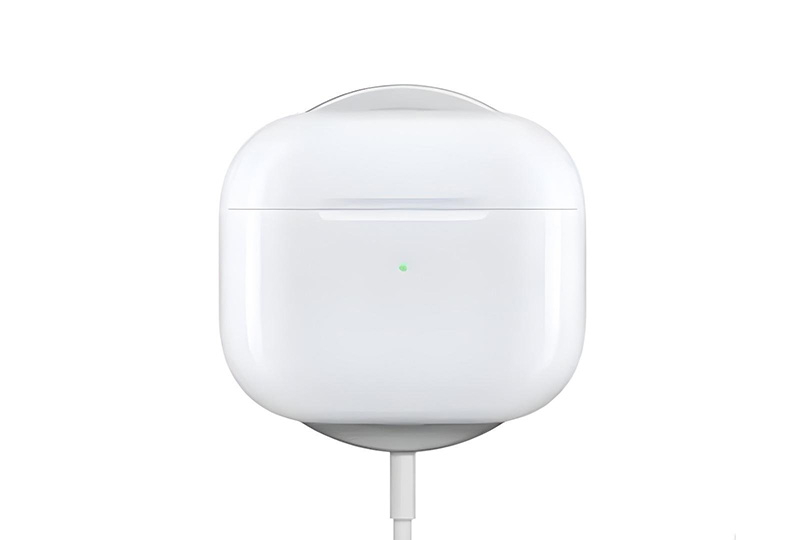
- Wireless Charging Woes: Missed the sweet spot on your Qi pad by an inch? Rocking a thick silicone case? The charge won't push through.
- A Software Glitch: Just like any computer, the power controller inside the case can simply freeze up and refuse to accept a charge, even if the hardware is fine.
- Battery Degradation: Lithium-ion batteries naturally lose their capacity after 2–3 years of heavy use. If your case drains instantly, the battery is likely toast.
- Physical Damage or Fakes: Drops, water damage, or knock-off hardware lead to highly unstable charging circuits.
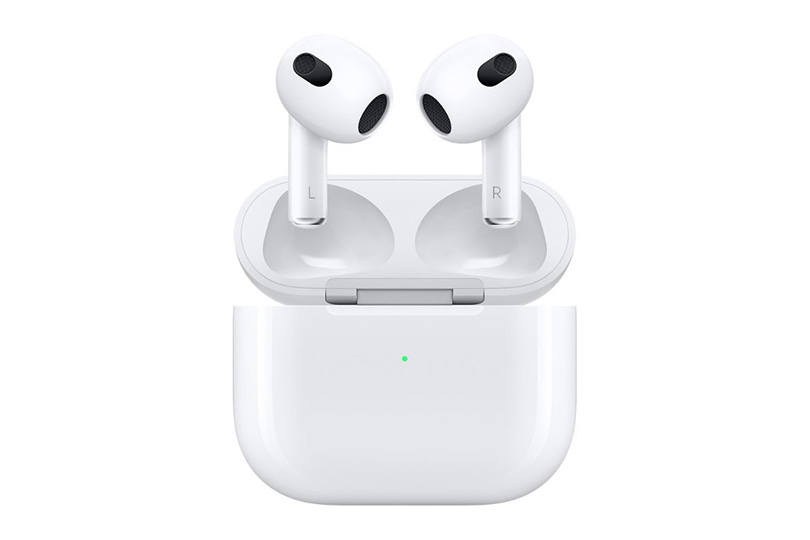
Pro Tip: Know your ports! AirPods Gen 1 and 2 rely on a Lightning cable (wireless charging was an optional separate case). AirPods 3 and Pro support both wired and wireless. The newest AirPods Pro 2 and AirPods 4 have made the jump to USB-C.
The Step-by-Step Revival Guide
Work through this list logically, from the easiest fix to the most extreme.
Step 1: Swap the Power Source
Try a different cable (borrow one from your iPhone or iPad). Swap the power brick, plug it into a laptop USB port, or use a power bank. If the case lights up, congratulations — you just had a bad cable.
Step 2: Clean the Port
Grab a flashlight and look inside the charging port. See any dark fuzz? Gently fish it out using a wooden toothpick or a soft, dry brush. Never use metal pins, wet wipes, or rubbing alcohol, as you will permanently destroy the contacts. A gentle dry clean fixes about 70% of all charging issues.
Step 3: Toggle Your Charging Method
If the cable isn't working, drop the case on a wireless Qi pad. Make sure to take off any thick protective covers and center it perfectly. If wireless fails, go back to the wire. You might just have one broken charging receiver.
Step 4: Check the iPhone Status
Open the lid of the case right next to your unlocked iPhone. The pop-up menu or the iOS Battery Widget will tell you the exact truth about the case's charge level and whether it recognizes the power source.
Step 5: The Hard Reset
Hold the setup button on the back of the case for about 15 seconds until the status light flashes white. You will have to reconnect them to your phone via Bluetooth. This wipes out software bugs, but keep in mind it won't magically fix a physically busted battery.
When to Call the Pros
If the case is totally unresponsive, the light is dead, or it took a dive into a puddle, no amount of toothpicks will save it. You are looking at a burnt charging circuit or a dead controller — it’s time for professional diagnostics.
How to Make Your Case Last Longer
Treating your battery right extends its lifespan by years. Here are the golden rules:
- Keep it in the Sweet Spot: Don't constantly drain the case to 0%, and try not to leave it plugged in 24/7.
- Watch the Thermostat: Don't leave it baking in the summer sun or freezing in a winter jacket.
- Clean the Port: A quick dry brush once a month prevents lint buildup.
- Keep It Dry: Even the water-resistant Pro models hate getting direct moisture in their charging ports.
Start with the simple stuff — clean the port and swap the cable. But if the electronics are genuinely fried, don't play scientist. Drop by the Dr.Head showroom in Dubai — we will hook you up with genuine replacement cases or a brand-new pair of AirPods, fully backed by warranty and professional service.