
























What is Ableton Live? A Beginner’s Guide to the One Real-Time DAW
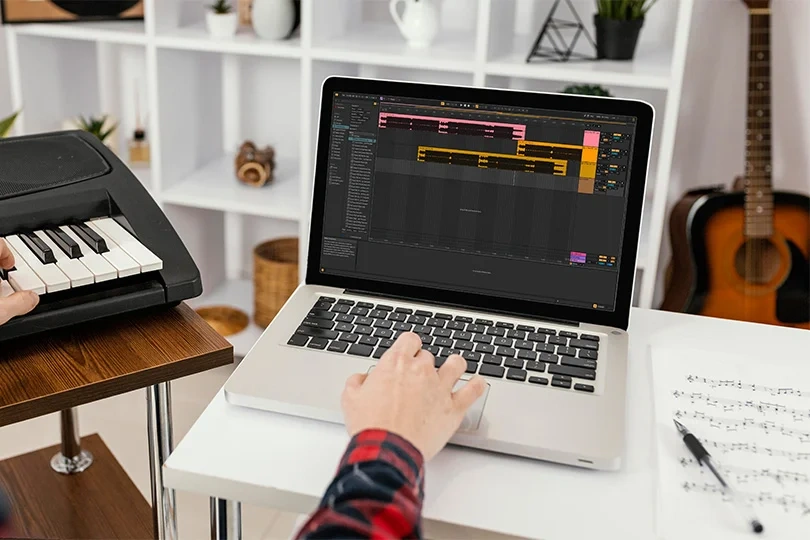
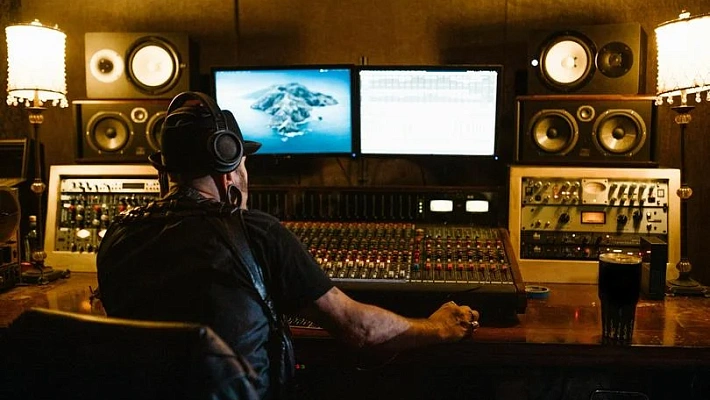
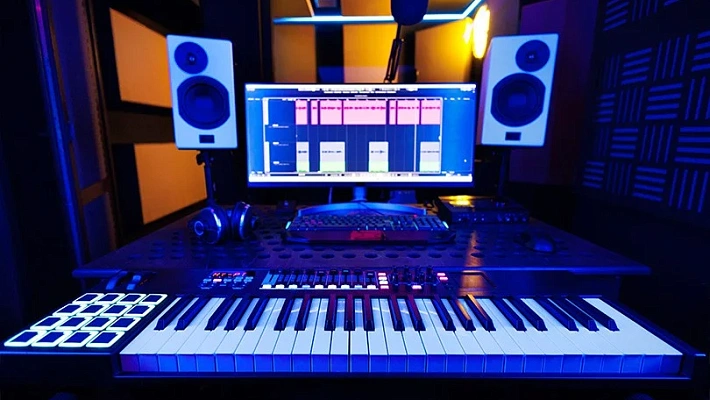
Ableton Live is one of the most popular software platforms for creating music on a computer. It belongs to the category of DAWs (Digital Audio Workstations) — digital studios that replace the massive mixing consoles and tape machines of the past.
But Ableton isn't just a recording tool — it’s an instrument in and of itself. Whether you are a budding producer in a small apartment or a DJ performing at a beach club, here’s everything you need to know about why this software changed the music industry…and how to get started with it.
Contents
The "Live" Difference
The main thing that separates Ableton from competitors (like Logic Pro or Cubase) is the ability to work with music non-linearly and in real-time.
In most software, you press play, and the music runs from start to finish. In Ableton Live, you can trigger loops, switch instruments, add effects, and change the tempo instantly without the music ever stopping.
Imagine you are playing a keyboard, but the software is simultaneously layering drums, bass lines, and vocal harmonies that you trigger with a single button press. This "live" workflow makes it the industry standard for electronic music production, DJ sets, and stage performances.
Who is Ableton Live For?
- Beginners: It is surprisingly easy to start. You don't need deep music theory knowledge to drag and drop loops and make a beat in minutes.
- Electronic Producers: If you make House, Techno, Hip-Hop, or EDM, this is the gold standard. The workflow is designed for loop-based music.
- DJs and Performers: It allows you to deconstruct tracks and remix them live on stage, syncing lighting and visuals simultaneously.
When should you look elsewhere?
- If you only record live bands and classical orchestras, traditional linear DAWs like Pro Tools or Cubase might offer more specific tools for multi-track editing.
- If you need to write complex sheet music/notation, software like Sibelius is better suited.
Key Features
Ableton handles everything from recording voice memos to mastering complex tracks. Here are the core functions.
Audio vs. MIDI Tracks
You will work with two main types of signals:
- Audio Tracks: For recording real-world sounds (vocals, guitars, hardware synths).
- MIDI Tracks: For controlling virtual instruments (software drums, synthesizers).
A great feature is the ability to convert between the two. You can hum a melody into a microphone, and Ableton can convert that audio into MIDI notes to be played by a violin synthesizer.
Sampling and Effects
Ableton treats audio like clay. You can take a drum beat from an old jazz record, loop it, and the software will automatically stretch it to fit the tempo of your project.
It also comes loaded with effects: Reverb (for space), Delay (for echo), and Filters (to change the tone). Believe it or not, these also work in real-time — tweak a knob, and the sound changes instantly.
Instruments and VSTs
The software includes its own drum machines and synthesizers. However, it also supports VST plugins. This means you can install third-party instruments from other developers, and they will integrate seamlessly into the Ableton interface.
Interface: Two Views, One Brain
This is where beginners often get confused. Ableton has two distinct views, and you can toggle between them with the Tab key.
Session View
This looks like a grid. Tracks are vertical. Here, you can launch "Clips" (musical ideas) in any order you want. It is perfect for sketching ideas, jamming, and live performances. You don't need to commit to a song structure yet; just see what sounds good together.
Arrangement View
This looks like traditional studio software. Time moves from left to right. This is where you record your jam session from the Session View to lay it out into a finished song with a beginning, middle, and end.
Getting Started: Your First Project
As we begin pressing the buttons and twisting the knobs, here’s a heads-up: worry not about potential mistakes. You won’t ever "break" the program unless you wish so — Ctrl+Z (aka Undo) will make sure of that.
- Add Tracks: Right-click in the empty space to Insert Audio Track or Insert MIDI Track.
- Use the Library: On the left panel, you will find sounds. Drag a drum kit onto a MIDI track or an audio loop onto an Audio track.
- Loop It: Double-click a clip to open settings. Activate the "Loop" button to make the sound repeat indefinitely.
- Automation: Want the volume to fade in? Press "A" to open Automation mode. Draw lines on top of your tracks to tell the software how to change volume or effects over time.
Pro Tips for Beginners
- Warping: This is Ableton's magic trick — it aligns audio to your grid. If you import a vocal recorded at 100 BPM into a project at 120 BPM, Ableton stretches it to fit without changing the pitch.
- Capture MIDI: Did you just play an amazing melody on your keyboard but forgot to hit record? Click the "Capture MIDI" button (it’s a small square frame icon, you’ll know it when you see it), and Ableton will recall the notes you just played from memory.
- Shortcuts: Learn them early — they’ll save you a ton of time. For instance, Ctrl+Shift+D duplicates a track; Ctrl+G groups tracks together; and so on, and so forth.
System Requirements & Versions
There are three tiers of Ableton Live:
- Intro: Basic features, limited track count. Great for hobbyists.
- Standard: The full range of editing tools and effects. The sweet spot for most producers.
- Suite: Includes Max for Live (a platform for building your own instruments) and a massive library of sounds.
Specs: You need Windows 10+ or macOS 11 or higher. Audio processing is heavy on the CPU, so a computer with at least 8GB — preferably 16GB — of RAM is recommended.
Conclusion
Ableton Live is more than just software; it’s your creative partner. Its unique "Session View" encourages you to play with music rather than just engineer it. But don’t just take it from us — the best way to learn is to do. Download the free trial, grab some loops, and start making noise.
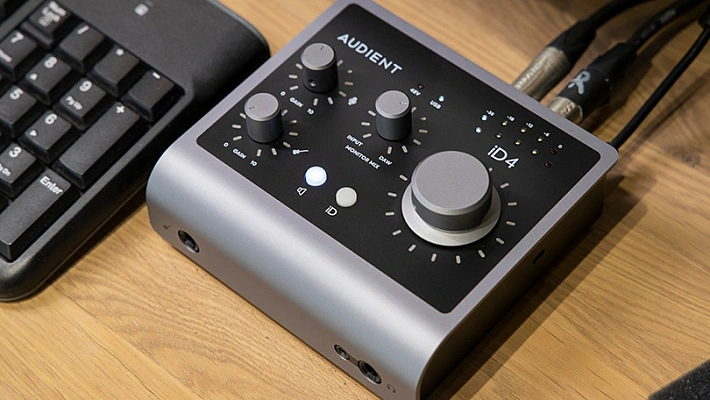
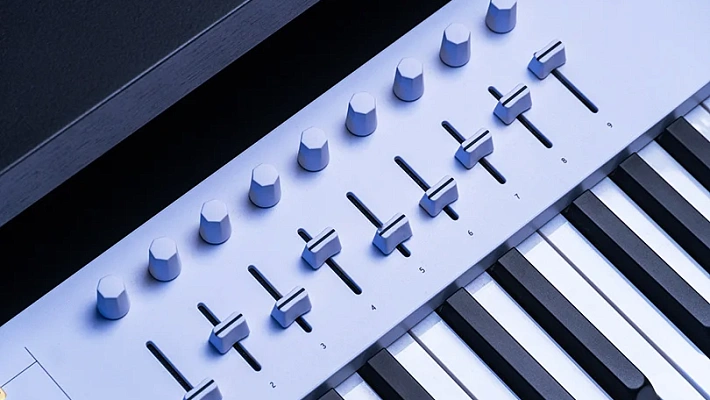
Ready to build your studio? To get the most out of Ableton, you need the right hardware. Visit the Dr.Head showroom in Dubai to test the best MIDI Keyboards, Audio Interfaces, and Studio Monitors that integrate perfectly with Ableton Live. Our experts can help you build the perfect setup.
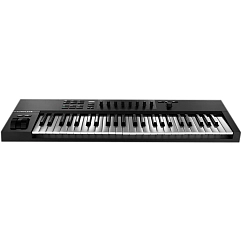
Brand: Native Instruments
Number of keys: 49
Connectors: USB-B, 6.35mm jack

Brand: Arturia
Number of keys: 61
Connectors: MIDI, 6.35mm jack, USB-B

Brand: Arturia
Number of keys: 25
Connectors: USB-C, MIDI, 6.35mm jack
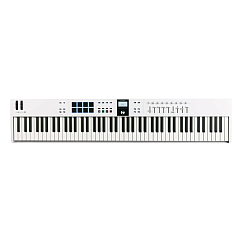
Brand: Arturia
Number of keys: 88
Connectors: 6.35mm jack, USB-C
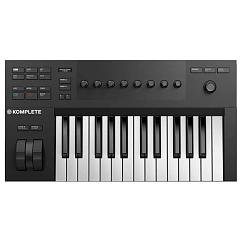
Brand: Native Instruments
Number of keys: 25
Connectors: USB-B, 6.35mm jack
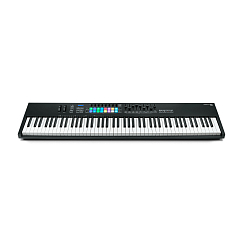
Brand: Novation
Number of keys: 88
Connectors: USB-B, midi, 6.35mm jack


Brand: Arturia
Number of keys: 49
Connectors: MIDI, USB-C, 6.35mm jack
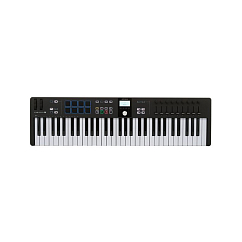
Brand: Arturia
Number of keys: 61
Connectors: MIDI, USB-C, 6.35mm jack
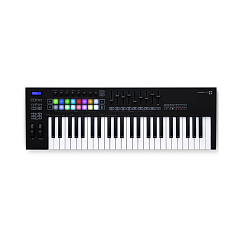
Brand: Novation
Number of keys: 49
Connectors: MIDI, USB-B, 6.35mm jack
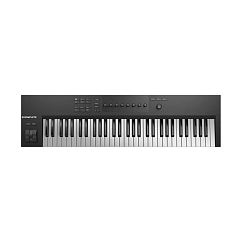
Brand: Native Instruments
Number of keys: 61
Connectors: USB-B, 6.35mm jack
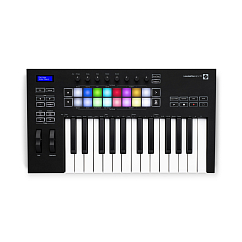
Brand: Novation
Number of keys: 25
Connectors: MIDI, 6.35mm jack, USB-B