


















The USB-C Trap: Why Your "Universal" Cable Might Be Useless & How to Fix It
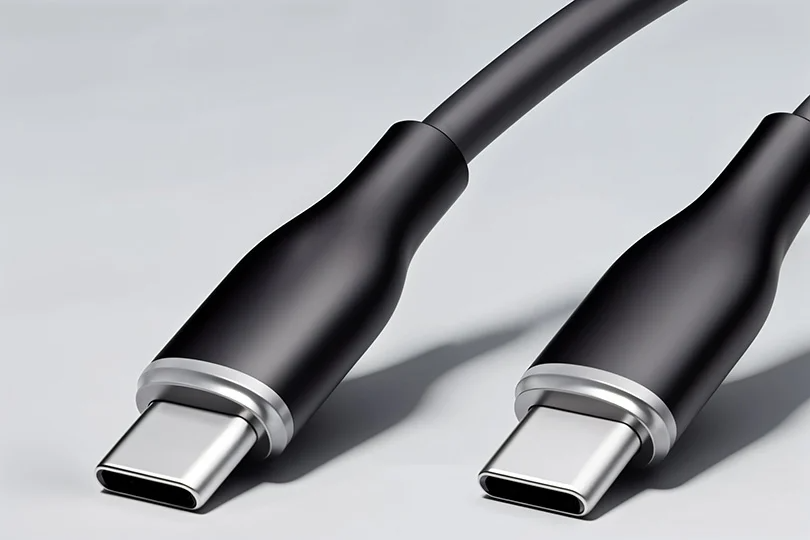
It was supposed to be the dream: One Port to Rule Them All. Since appearing in 2014, the USB-C connector has taken over our lives. It’s on your phone, your laptop, your headphones, and even your monitor.
Ideally, you should be able to grab any USB-C cable, plug it into any device, and have it work perfectly. The reality, however, is quite different: you plug your laptop into a monitor, and... nothing happens. Or you use a spare cable to charge your MacBook, and it takes five hours instead of one. Why?

Here is the dirty secret of the tech world: USB-C is just a shape. What happens inside that shape varies wildly. A cheap cable might only handle basic charging, while a pro cable can transfer massive video files in seconds.
Let’s decode the mess and help you pick the right cable so you don't fry your gear — or your patience.
Contents
The 3 Superpowers of USB-C
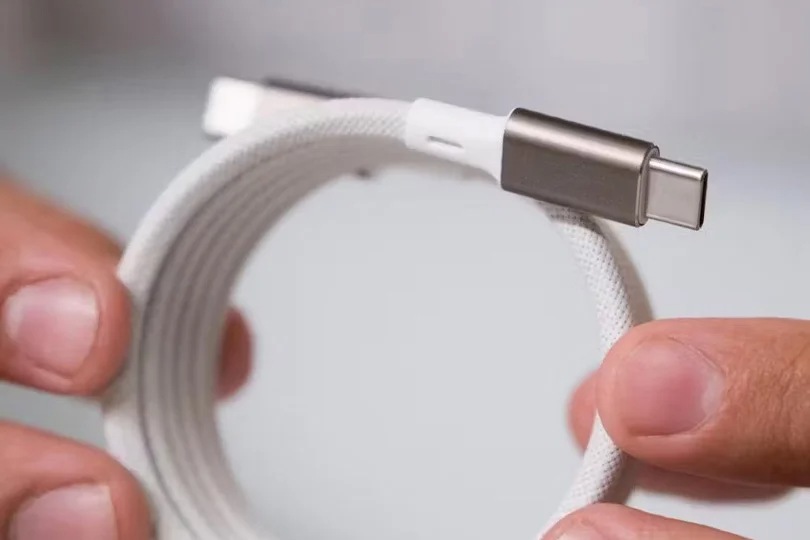
Physically, the connector has 24 tiny pins inside, but manufacturers don't always connect all of them. Depending on the wiring, a cable can do one, two, or all three of these jobs:
1. Power Delivery: The Charging Lane
This is simply getting energy from the wall to your battery.
- Basic Cables are often limited to 60W, which is enough for phones and tablets.
- Pro Cables can handle 100W or even 240W, which is required for powerful gaming laptops and MacBook Pros.
The Trap: If you use a weak cable with a powerful charger, your device will still charge slowly, and the cable might even overheat. You don’t want that.
2. Data Transfer: The Speed Lane
This is where the biggest differences lie.
- USB 2.0 speed (480 Mbps): Most charging cables — even the ones that come with iPhones — are stuck here. It’s fine for charging, but moving photos to a laptop will take forever.
- USB 3.2 (10–20 Gbps): A big upgrade, great for external SSDs.
- USB4 / Thunderbolt (40 Gbps): Blisteringly fast. Used by pros to edit video directly off external drives — and this says a lot.
3. DisplayPort Alt Mode: The Video Lane
This allows the cable to send video signals. If your cable supports this, you can plug your laptop directly into a monitor without an HDMI.
The Trap: Many "charging" cables lack the wiring for video. You plug it in, and the screen stays black. That’s part of the issue with…
Choosing the Right Cable: 3 Scenarios
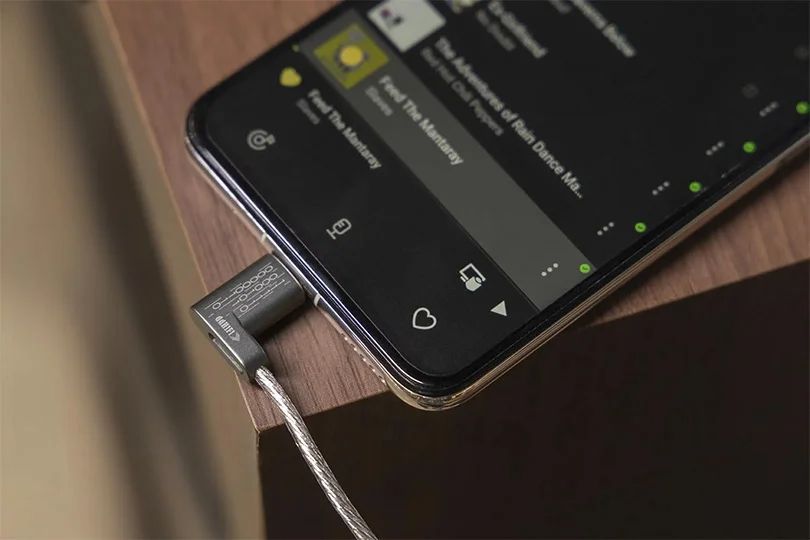
Stop guessing. Let’s define what you are doing and pinpoint the cable that fits the job. You most likely fall under one of these three categories, so skim through the scenarios below and find which one describes you best.
Scenario A: Just Charging My Phone
You have an iPhone 15, a Samsung Galaxy, or wireless headphones.
- What you need: A standard USB-C to USB-C cable.
- Specs to look for: "60W" or "3A".
- Speed: USB 2.0 is fine here. Don't overpay for Thunderbolt speeds you won't use anyway.
Scenario B: The Laptop Power User
You have a MacBook Air, Pro, or a high-end Windows ultrabook.
- What you need: A cable with a high power rating.
- Specs to look for: "100W" (or 5A) and "Power Delivery (PD)".
- Why: A standard phone cable might cap your charging speed, making your laptop drain battery even while plugged in during heavy tasks.
Scenario C: The Creator (For Monitors & SSDs!)
You want to connect a 4K monitor or move 100GB of video files to an external drive.
- What you need: A fully loaded cable.
- Specs to look for: "USB4", "Thunderbolt 3/4", or "20/40 Gbps".
- Video: Look for the "DisplayPort" icon or mention of "4K/8K video support".
The "Length vs. Speed" Trade-Off
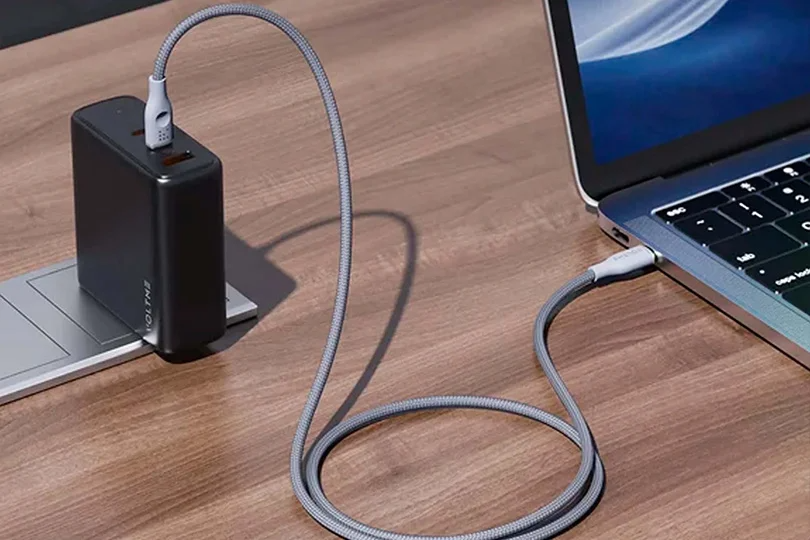
Here is a law of physics you can't ignore: The faster the data, the shorter the cable.
Sending 40Gbps of data is incredibly difficult. Electrical signals degrade over distance. That’s why there are two types of cables you’ll have to consider based on your needs to balance the length and speed correctly.
- Passive Cables (Cheap): Can only maintain high speeds (USB4) over very short distances (0.8 meters or less). If they are longer (2m+), the speed drops to USB 2.0 levels.
- Active Cables (Pro): These have microchips inside the connectors to boost the signal. They allow you to have a long (2m+) cable that still runs at full Thunderbolt speeds. They are expensive, but necessary for pro setups.
How to Avoid a Bad Buy: 3 Red Flags
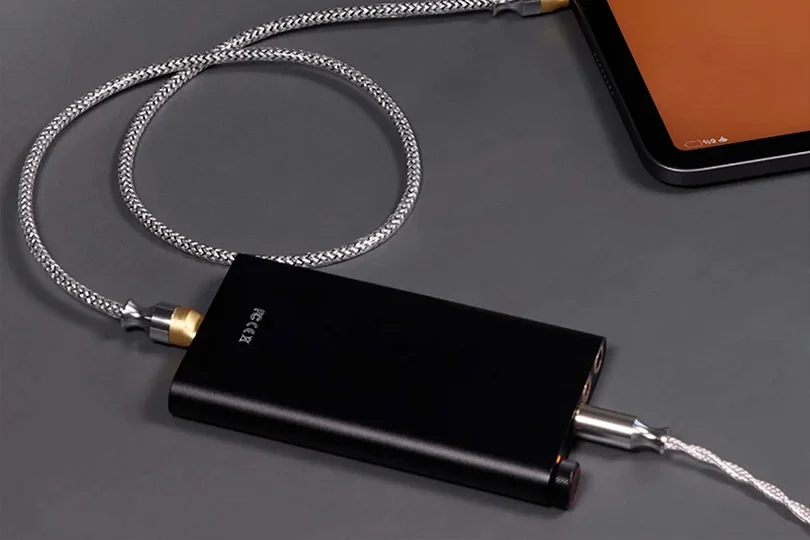
- "Charge Only" Labels: Avoid these unless you strictly want a cable for a bedside lamp. They often have poor internal shielding, and they won’t cover any other needs.
- No Specs on the Box: If the packaging says "Fast Cable" but doesn't list Watts (W) or Speed (Gbps), put it back. Reputable brands — like Anker, FiiO, ddHiFi, etc. — always list the specs.
- The "Thick" Myth: Just because a cable is thick or braided doesn't mean it's fast. It might just have thick insulation around 10-year-old technology. So yeah — don’t ignore the specs!
The Verdict
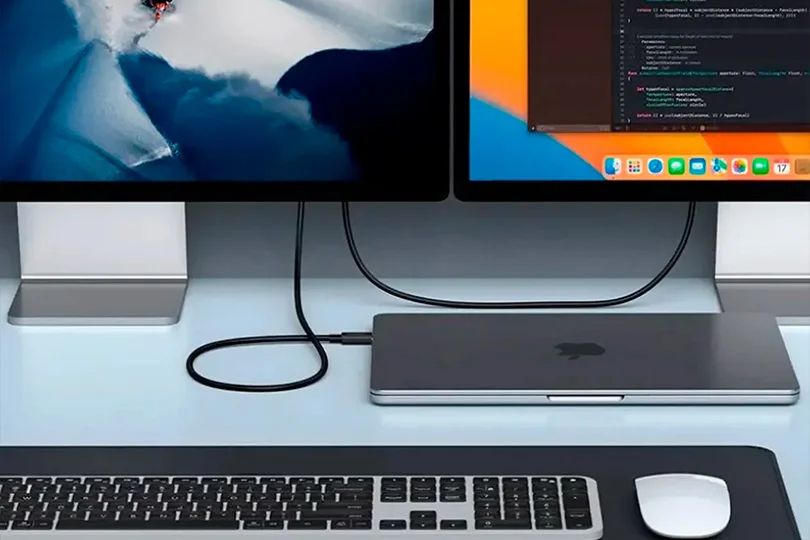
USB-C is amazing, but only if you respect and understand the tech and its specs. Let’s quickly recap the two most common use cases and their demands.
- For your nightstand: Any durable 60W cable is fine.
- For your workstation: Invest in a certified 100W USB4 or Thunderbolt cable. It’s the only way to ensure your expensive laptop charges fast, transfers data instantly, and connects to your monitor without issues.
At Dr.Head, we stock certified cables that do exactly what they say on the box. Whether you need to charge a phone or wire up a professional video editing suite, we can help you find the missing link. Make sure to stop by our Dubai showroom, and let’s get you all connected.
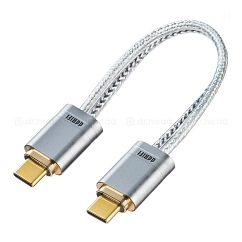

Conductor material: copper, silver
Material: metal, PVC
Braid material: PVC
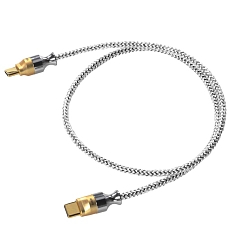

Conductor material: copper
Braid material: PVC
Brand: ddHiFi
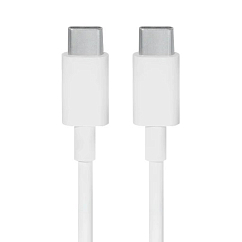

Conductor material: copper
Braid material: PVC
Brand: ddHiFi
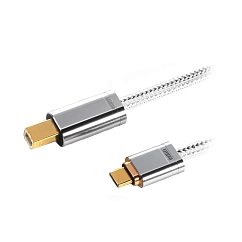
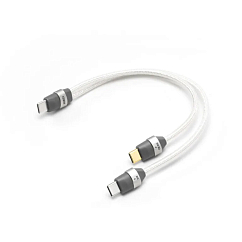

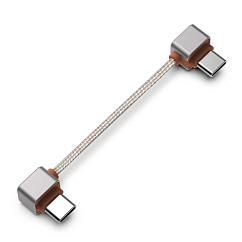
Braid material: nylon
Brand: ddHiFi
Cable length, m: 0.08