










How to Sync Your Wireless Earbuds: A Step-by-Step Guide
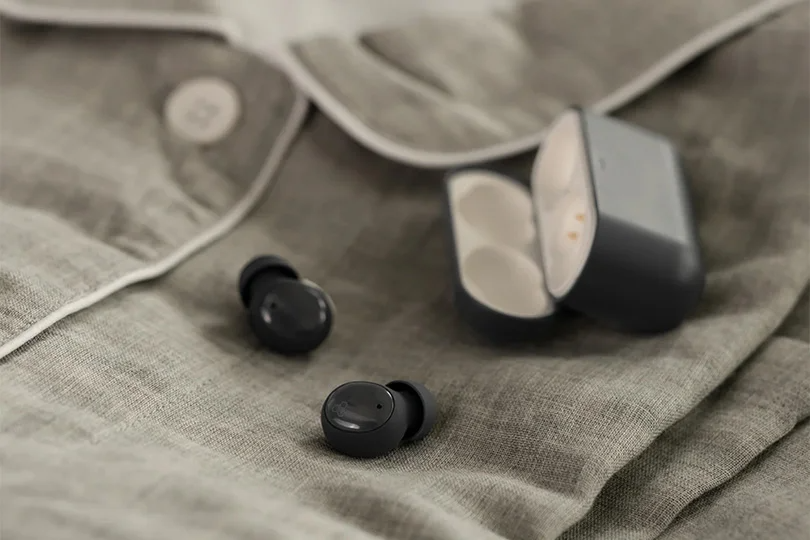
It goes like this: you put on your favorite track, but sound only comes out of one ear — or worse, your phone shows two separate Bluetooth devices with the same name. This is called desynchronization, and it’s one of the most common issues with TWS (True Wireless Stereo) earbuds.
But don't worry — your headphones aren't broken. They just forgot how to talk to each other. Here is how to fix them and get your stereo sound back.
Contents
Why Do Headphones Stop Syncing?
Most wireless earbuds operate on a Master-Slave system. One bud connects to your phone, and the other connects to the first bud. When this internal link breaks, the second bud goes silent.
Common causes of desync include:
- Improper Shutdown: Putting buds back in the case one by one with a long delay.
- Dead Battery: One bud died completely while the other kept playing.
- Mono Mode Confusion: You accidentally connected to the "Left" bud only, and now your phone treats them as two separate devices.
The Universal Fix
This method works for 90% of headphones, from budget models to premium ones.
Step 1: Forget the Device
Go to your phone’s Bluetooth settings. Find your headphones and tap "Forget This Device" or "Unpair".
Crucial: Do this on ALL devices you have paired with (laptop, tablet, old phone). If a nearby device remembers them, they might reconnect to it automatically and block the reset.
Step 2: The Hard Reset
You need to wipe the earbuds' memory.
- For Touch Controls: Put them in the case (lid open) or take them out. Press and hold the touch sensors on both earbuds simultaneously for 10–15 seconds.
- For Buttons: Hold the physical buttons on both buds until the LED lights flash (usually red/white or rapid blinking).
Step 3: Let Them Find Each Other
This is the step most people skip. Take both buds out of the case at the same time. Do not connect to your phone yet! Wait 5–10 seconds. You will see the lights blinking on both, then one light will stop or change color.
What happened? The buds just shook hands and re-established their Master-Slave connection.
Step 4: Pair With Phone
Now, open your phone’s Bluetooth menu. You should only see one device name, even if you previously saw two copies of it. Tap to connect.
Syncing via Charging Case
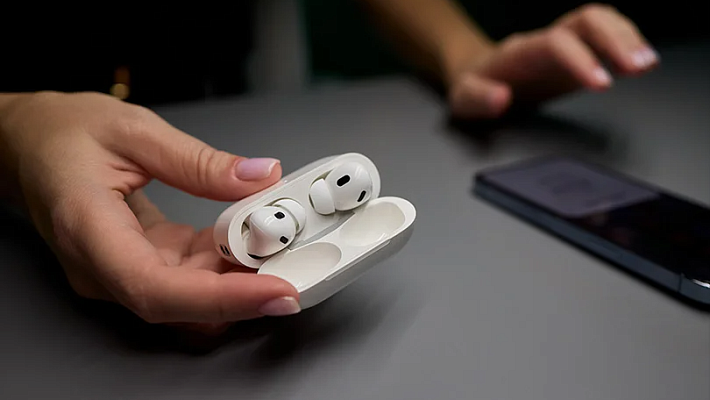
For many TWS earbuds — think Apple AirPods, Google Pixel Buds, and many Samsung models — the case is the control center. Here’s what you should do for them:
- Put both buds in the case.
- Close the lid for 10 seconds.
- Open the lid. Find the setup button on the back or inside the case.
- Hold the button for 10–15 seconds until the status light flashes amber, then white.
- Reconnect to your phone.
Still Not Working? Troubleshooting Tips
One bud isn't charging: Check the metal contacts inside the case. Dirt or earwax can block the charging pin, meaning one bud never actually turns off or resets. Clean them with a Q-tip and a little rubbing alcohol.
Check Audio Balance: Go to your phone’s Accessibility settings. Ensure the Audio Balance slider is right in the middle; sometimes it gets moved by accident.
When to Visit Service
If you have done a hard reset, cleaned the contacts, and checked the settings, but one side is still dead, you might have a hardware failure, like a dead battery or a broken driver.
If you’re unsure what to do next, bring your headphones to the Dr.Head showroom in Dubai. We can diagnose if it’s a permanent failure or a software glitch we can fix… And if it’s the former, we’ll find you a new pair in no time — and explain just what to do to prevent problems like this.
Pro Tip: To avoid desync in the future, try to charge your case regularly and put both earbuds back in the case at the same time.
Headset type: stereo
Brand: Apple
Type of wireless headphones: True Wireless
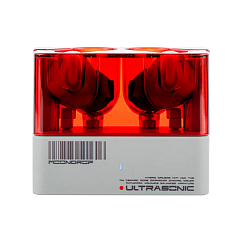
Brand: MoonDrop
Type of wireless headphones: True Wireless
Bluetooth version: 5.3
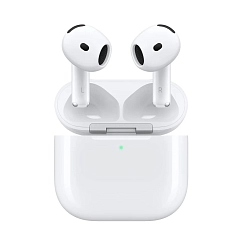
Headset type: stereo
Brand: Apple
Type of wireless headphones: True Wireless

Headset type: stereo
Brand: Noble Audio
Type of wireless headphones: True Wireless

Headset type: stereo
Brand: Bose
Type of wireless headphones: True Wireless
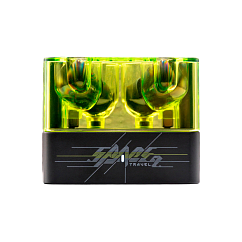
Brand: MoonDrop
Type of wireless headphones: True Wireless
Bluetooth version: 6.0
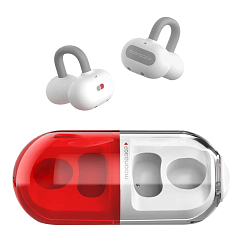
In-Ear headphone type: true wireless
Multipoint: yes
Brand: MoonDrop

Headset type: stereo
Brand: MoonDrop
Type of wireless headphones: True Wireless

Headset type: stereo
Brand: Apple
Type of wireless headphones: True Wireless
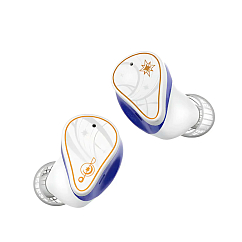
Brand: MoonDrop
Type of wireless headphones: True Wireless
Bluetooth version: 5.4
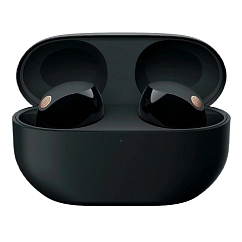
Headset type: stereo
Brand: Sony
Type of wireless headphones: True Wireless

Headset type: stereo
Brand: Noble Audio
Type of wireless headphones: True Wireless