










How to Connect JBL Headphones
JBL headphones are famous for their signature punchy sound, but that reputation holds up only if they are connected correctly. A poor setup can lead to audio distortion, signal dropouts, or missing frequencies, making even premium models sound like cheap imitations.
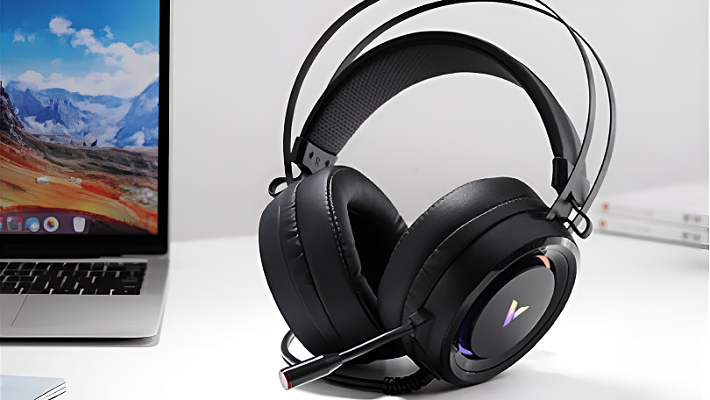
Whether you own classic over-ear cans or True Wireless earbuds, this guide will walk you through connecting your JBLs to any device — and fixing the most common pairing headaches while we’re at it.
Contents
Connecting to Your Smartphone
Most modern JBL models rely on Bluetooth. The process is straightforward, but the steps vary slightly depending on your operating system.
Android
- Check the Battery: Ensure your headphones have at least a 20% charge. Low batteries cause unstable connections.
- Enter Pairing Mode: Press and hold the power button for 3–5 seconds until the LED indicator flashes blue and red (or rapidly flashes blue).
- Open Settings: Swipe down from the top of your screen and tap the gear icon.
- Go to Bluetooth: Find the "Bluetooth" or "Connected Devices" menu and ensure it is toggled on.
- Scan for Devices: Tap "Pair new device" or "Scan."
- Select Your JBLs: Tap your headphone model when it appears in the list.
- Confirm: Once connected, the flashing LED on the headphones will turn solid blue.
iPhone (iOS)
- Prep the Headphones: Turn them on and enter pairing mode (hold the power button until the light flashes).
- Open Settings: Launch the Settings app from your home screen.
- Go to Bluetooth: Tap the Bluetooth menu and ensure the toggle is green.
- Find Your Device: Look under the "Other Devices" section at the bottom of the screen.
- Connect: Tap your JBL model. It will move up to "My Devices" with a "Connected" status.
Connecting to a PC or Mac
Connecting to a computer gives you the option of wireless convenience or wired reliability.
Windows 10 & 11
- Open Settings (press Win + I) and navigate to Bluetooth & devices. Ensure Bluetooth is turned on.
- Put your JBL headphones into pairing mode.
- Click Add device, select Bluetooth, and wait for your headphones to appear. Click the name to pair.
macOS
- Open System Settings (or System Preferences) and click on Bluetooth. Turn it on if it is disabled.
- Put your headphones into pairing mode.
- When your JBL model appears in the list, click Connect.
Using the Wire: AUX
If your computer lacks Bluetooth or you are fighting driver issues, use the 3.5mm AUX cable included with many over-ear models. Plug it into the headphones and the computer's audio jack. The system will detect them automatically with zero configuration required.
Connecting to a TV or Media Box
Modern Smart TVs make this easy, but older setups require workarounds.
Smart TVs
Use your TV remote to open the Settings menu. Navigate to Sound or Audio Outputs, and select Bluetooth Speaker List (the exact wording varies by brand). Put your JBLs in pairing mode and select them on the TV screen.
TV Boxes (Apple TV, Android TV)
The process is identical to that of a smartphone. Go to the settings menu of the media box, find the Bluetooth section, and pair your headphones directly to the box rather than the TV.
Older TVs
If your TV does not have built-in Bluetooth, you have two options: use a long 3.5mm AUX cable, or buy an external Bluetooth transmitter that plugs into the TV's audio output and wirelessly beams the sound to your headphones.
Special Rules for TWS Earbuds
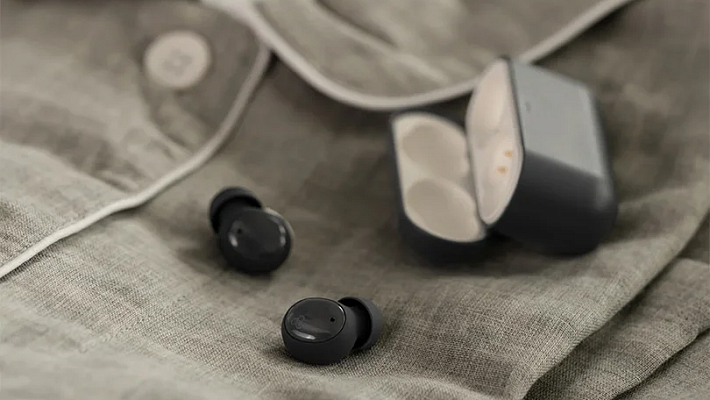
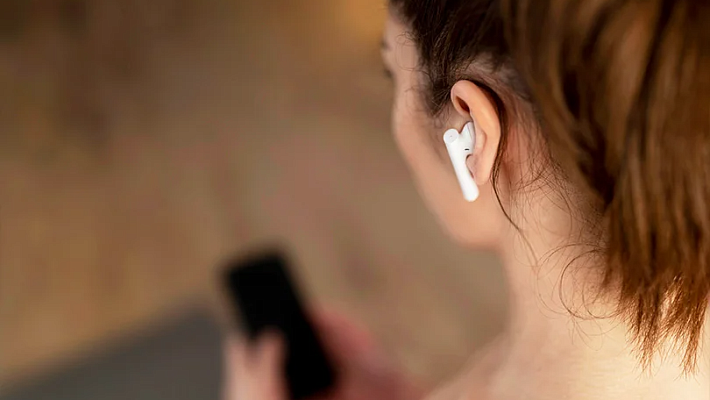
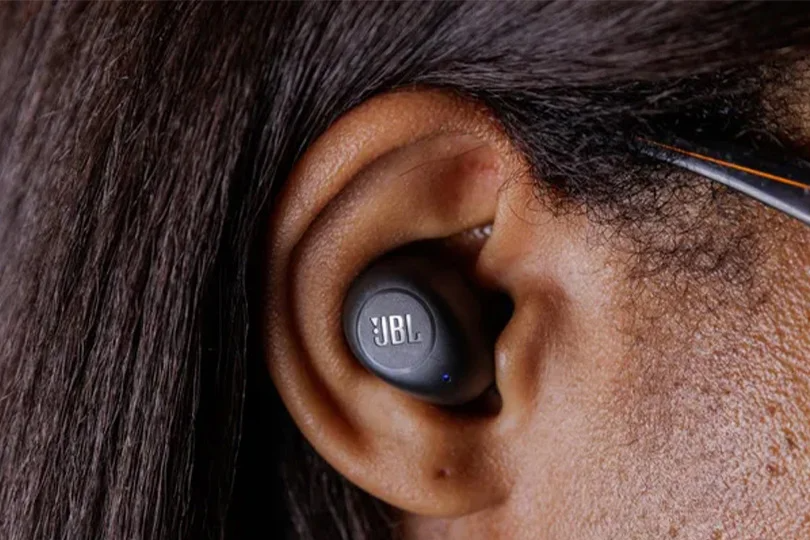
True Wireless Stereo earbuds work a bit differently. They must sync to each other before they can connect to your phone.
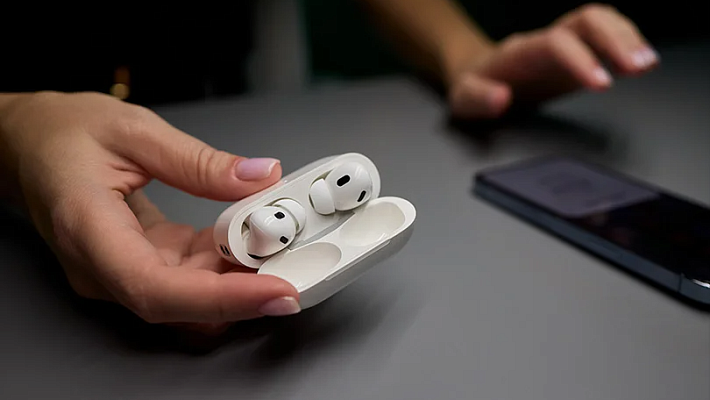
- Auto-Pairing: Usually, simply opening the charging case puts TWS earbuds into pairing mode. They will flash, find each other, and then show up on your phone's Bluetooth list as a single device.
- Manual Trigger: If they don't appear, take them out of the case and tap and hold the touch sensors on both buds for 5–7 seconds.
- The "One Bud Silent" Fix: If only one earbud plays music, the internal sync has failed. Put both buds back in the case, close the lid for 10 seconds, and try again. If that fails, "Forget" the device on your phone and start the pairing process from scratch.
Troubleshooting Common Issues
Even top-tier tech gets confused sometimes. Here is how to fix it:
- Headphones won't show up in the list: Toggle your phone's Bluetooth off and on again. If you have paired these headphones to this phone before, find them in the history, select "Forget this device," and scan again.
- Audio cuts out or stutters: Keep your device within 8–10 meters. Physical obstacles (walls, metal doors) and heavy Wi-Fi router traffic can severely disrupt Bluetooth signals.
- PC won't play sound: Even if connected, Windows might still be pushing sound to your laptop speakers. Click the speaker icon in the Windows taskbar and manually select your JBL headphones as the output device.
Pro Tips for the Best Experience
- Clean your pairing list: Phones get confused when they have 20 old Bluetooth devices saved. Delete devices you no longer own.
- Use the App: Download the JBL Headphones App. It allows you to update the firmware (which fixes connection bugs), customize the EQ, and adjust noise cancellation settings.
Looking for Alternatives?
If you are struggling with your current pair and considering an upgrade, there are excellent alternatives that share standard Bluetooth protocols but offer different sound signatures.
- Noble Audio: For audiophiles seeking premium detail and advanced codecs.
- Final Audio: A Japanese brand renowned for incredibly natural, balanced tuning.
- AG: Great hybrid models that offer high value and comfort.
You can test all these brands and find the perfect fit for your ears at the Dr.Head showroom in Dubai. Our experts can also help you diagnose any stubborn connectivity issues with your current gear, no problem.
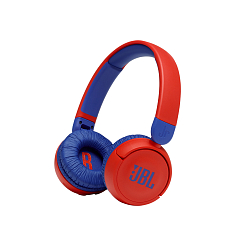

Headset type: stereo
Brand: JBL
Type of wireless headphones: True Wireless

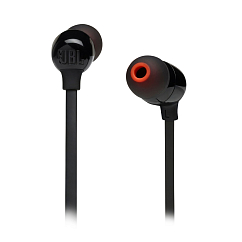

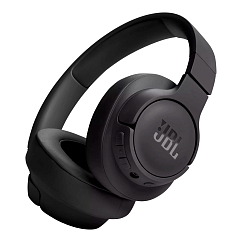

Headset type: stereo
Brand: JBL
Type of wireless headphones: True Wireless
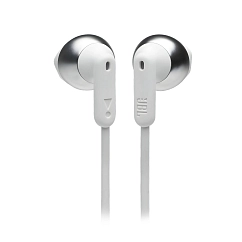
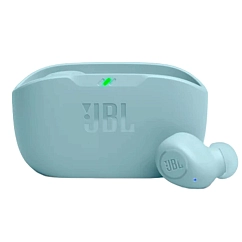
Headset type: stereo
Brand: JBL
Type of wireless headphones: True Wireless

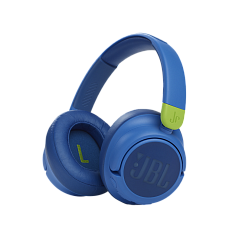
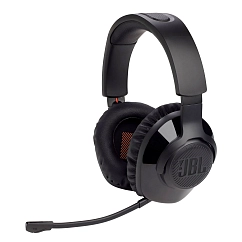
Earpads material: synthetic leather
Charging connector: USB-C
Color shade: black