










How to Connect Any Headphones to Your PS5 or PS4: The Guide
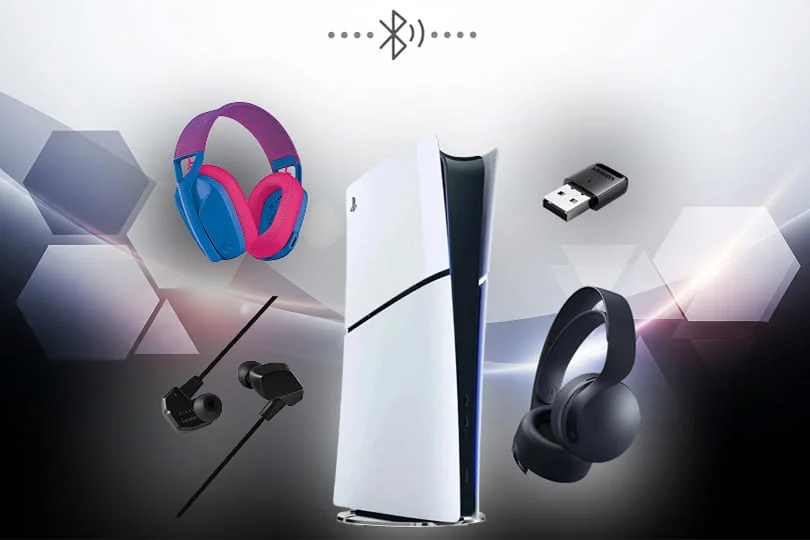
Modern gaming is all about immersion. The stunning graphics are only half the story; it's the audio that pulls you in, gives you a tactical advantage, and makes you feel every explosion. But what happens when you plug in your favorite headphones and... nothing? Or worse, you discover your expensive Bluetooth headphones won't even connect?
It's a common frustration, but don't worry. We've broken down every way to get audio from your PlayStation to your ears, from the dead-simple to the clever workarounds.
Contents
Method 1: The Easiest, Most Reliable Way (Wired)
This is the simplest, most stable, zero-lag solution, and it works for both PS5 and PS4.
Your DualSense (PS5) or DualShock 4 (PS4) controller has a standard 3.5mm headphone jack right at the bottom. Just plug your wired headphones or earbuds directly into it. The console will automatically detect them and switch the audio.
- Pro-Tip on Mics: For your microphone to work, your headphone plug needs to be a TRRS plug (the kind with three black rings on the metal tip). This is standard for almost all headphones made for phones.
- What about PC Headsets? If you have a classic PC gaming headset with two separate 3.5mm plugs (one for audio, one for the mic), you'll need a simple "Y-splitter" adapter. This cheap adapter combines the two plugs into a single TRRS plug that will work perfectly with the controller.
Method 2: The "Official" Wireless Way (2.4GHz USB Dongles)
This is where most of the confusion happens. When you buy a "Wireless PlayStation Headset," it almost never uses Bluetooth. Instead, it uses a dedicated 2.4GHz USB dongle (a small receiver) that you plug into the console.
This method uses a private radio frequency, which is vastly superior to Bluetooth for gaming because it provides a rock-solid, zero-latency connection.
This is the "it just works" wireless solution. Plug in the dongle, turn on the headset, and you're connected.
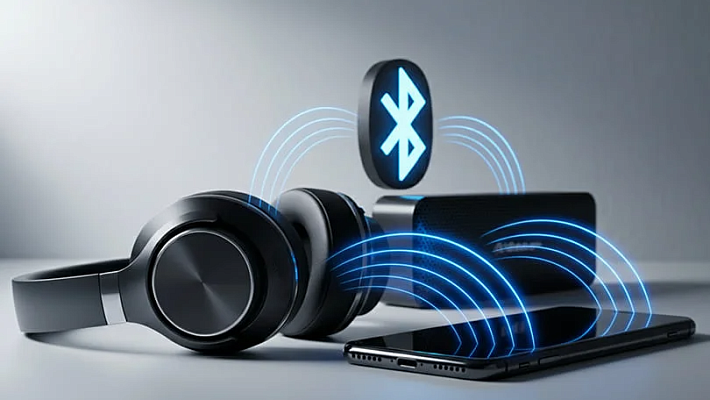
Method 3: The Bluetooth Problem (And the 2 Workarounds)
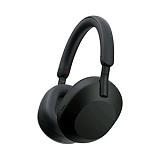
Here's the hard truth: Sony intentionally blocks almost all third-party Bluetooth audio devices. Your AirPods, Bose, or Sony WH-1000XM headphones will not connect directly to the PS4 or PS5.
But you still have options.
Workaround A: The Bluetooth Audio Adapter
You can buy a small USB Bluetooth audio adapter. This dongle plugs into your PS5's USB port and acts as the middleman. The PS5 sends its audio to the adapter (thinking it's a USB headset), and the adapter then transmits that audio via Bluetooth to your headphones.
The Catch: This method is almost always for audio output only. Your headphone's built-in mic probably won't work. Ultimately, you'll have to use the tiny mic built into the DualSense controller for voice chat.
Workaround B: Connect to Your TV
If your TV has Bluetooth audio support, you can use this as a last resort.
- Connect your PS5 to your TV via HDMI (as usual).
- Go into your TV's sound settings (not the PS5's).
- Pair your Bluetooth headphones directly to the TV.
The Catches: This method has two major flaws. First, your microphone will not work. Second, this method almost always introduces significant audio lag. This is fine for single-player story games, but disastrous for online shooters where the sound of a gunshot will arrive a split-second after you see it.
A Note on the PlayStation Portal
The PS Portal is a streaming accessory, not a new console. It has its own new wireless tech called PlayStation Link for Sony's latest official headsets. However, for all other audio, it relies on one simple solution: a 3.5mm wired headphone jack. You can also use a USB-C Bluetooth audio adapter (the same as Workaround A) in its USB-C port.
Sound Not Working? Check This First!
If you've plugged everything in and yet can only hear silence, this troubleshooting checklist will give you the answer 99% of the time.
- Check Your Output Device: This is the most common problem. On your PS5, go to Settings > Sound > Audio Output.
- Make sure "Output Device" is set to "Headset (Controller)" if you're plugged into the gamepad, or "USB Headset" if you're using a dongle/adapter.
- Also, check "Output to Headphones" and set it to "All Audio" (not just "Chat Audio").
- Is It Charged? If it's a wireless headset, check the battery.
- Reboot & Re-Pair: The classic fix. Restart your console and try re-pairing your wireless device.
The Final Verdict: Your 3 Best Options
- For Best Quality & Simplicity: Use a wired headset plugged directly into your controller's 3.5mm jack. Zero lag, great sound, no batteries.
- For Best Wireless Convenience: Get an official or "Made for PlayStation" wireless headset that comes with its own 2.4GHz USB dongle.
- To Use Your Existing Bluetooth Headphones: Buy a USB Bluetooth Audio Adapter, but be prepared to use your controller's built-in mic for chat.
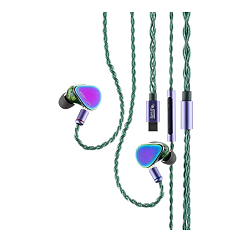
Detachable microphone: yes
Multipoint: yes
Headset type: stereo
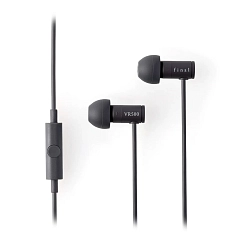
Brand: Final Audio
Headphone type: wired
The lowest frequency, Hz: 20
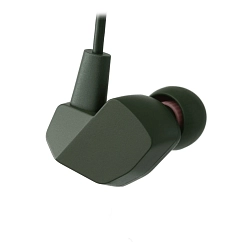
Microphone type: dynamic
The highest microphone frequency, kHz: 20
The lowest microphone frequency, Hz: 20

Microphone type: dynamic
The highest microphone frequency, kHz: 20
The lowest microphone frequency, Hz: 20
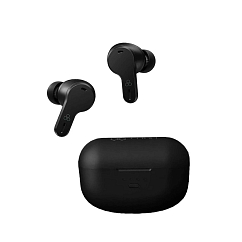
Brand: Final Audio
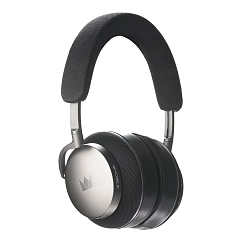
Headphone type: wireless
Bluetooth version: 5.2

Earpads material: synthetic leather
Charging connector: USB-C
Color shade: black
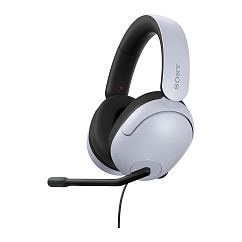
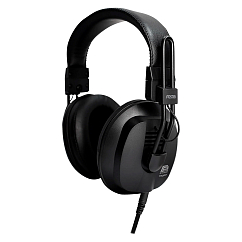
Brand: Fostex
Headphone type: wired
The lowest frequency, Hz: 10
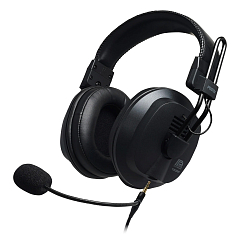
Detachable microphone: yes
Microphone type: condenser
Headset type: stereo

Earpads material: leather
Color shade: white
Connectors: USB-A
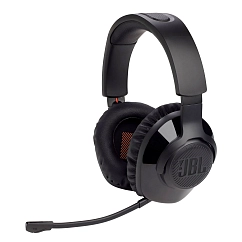
Earpads material: synthetic leather
Charging connector: USB-C
Color shade: black