
























Audio Latency: How to Fix Lip-Sync
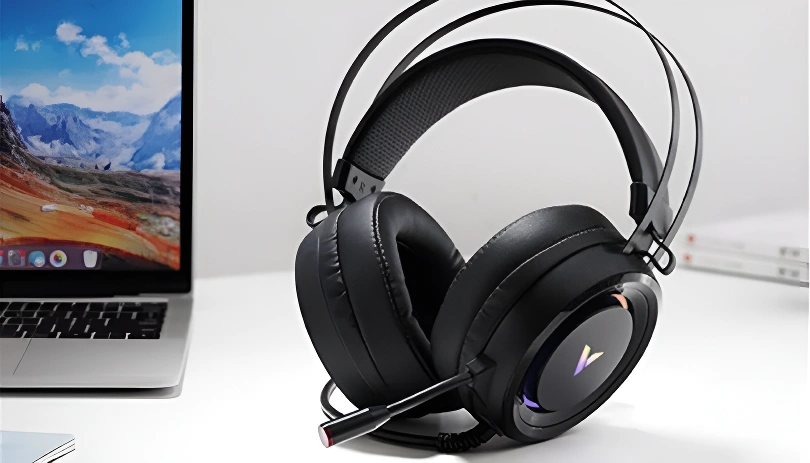
Are you watching a movie, but the actors' voices don't match their lip movements? Or perhaps you're playing a fast-paced shooter, and the sound of your gunshot registers a fraction of a second after you pull the trigger?
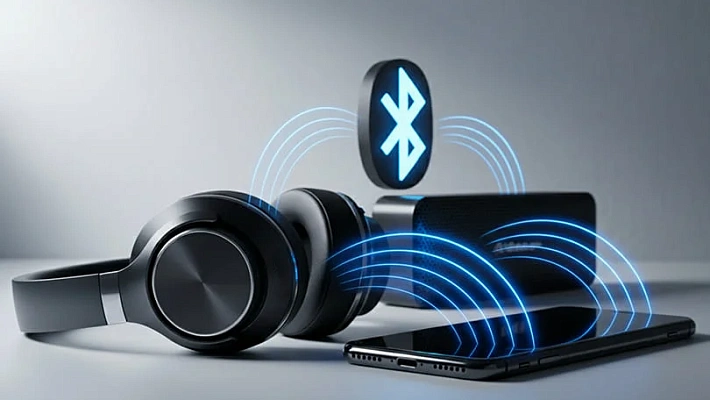
If you are using Bluetooth headphones, you are likely experiencing audio latency. While wireless audio has improved massively over the years, transmitting sound through the air still requires processing time.
But it doesn’t mean you have to tolerate lip-sync issues! Let’s learn to understand, measure, and fix audio delay in your wireless headphones.
Contents
What is Audio Latency?
In simple terms, audio latency is the time it takes for an audio signal to travel from your device to your headphones and into your ears. It is measured in milliseconds (ms). For example, a latency of 150 ms means the sound reaches your ears 0.15 seconds after the visual action happens on screen.
With wired headphones, the electrical signal travels directly through the cable at near light-speed, resulting in virtually zero delay. Wireless audio is much more complex: the sound must be compressed by a codec, transmitted via radio waves, received by the headphones, decompressed, and finally played. Every step adds milliseconds.
How to Test Latency "By Ear"
Before diving into exact numbers, you can run a few simple subjective tests to see if the delay is actually a problem for your daily use.
- The Clap Test: Open YouTube and search for an "Audio Video Sync Test" or "Clap Test." Watch the video carefully: the exact moment the person's hands connect (or the bouncing ball hits the line, etc.) should perfectly match the "clap" sound. If the sound trails behind the visual, you have noticeable latency.
- The UI Test: Open your phone's settings or messaging app. Type on the keyboard rapidly. The system "click" sounds should happen exactly as your finger taps the glass.
- The Gaming Test: Boot up any shooter or rhythm game. If you fire a weapon and hear the sound after the muzzle flash disappears, the latency is too high for competitive gaming.
Note: If you only use your headphones to listen to Spotify or podcasts, latency does not matter at all. It only becomes an issue when audio needs to sync with a visual element on a screen.
How to Measure Latency Accurately
If you want hard numbers, you can use free online tools to measure your exact delay.
Method 1: The Microphone Delay Test
- Connect your Bluetooth headphones to your computer or smartphone.
- Open your browser and go to a site like webcammictest.com and find the "Headphones Delay Test" section.
- Grant the website access to your device's microphone.
- The site will play a sharp reference beep. Place your headphone speaker directly next to your device's microphone.
- The software will compare the time the beep was sent to the time the microphone picked it up, calculating the exact millisecond delay.
- Run this 2–3 times and take the average for accuracy. Done!
Method 2: The Rhythm Click Test
Search for a "Latency Tester" or "Reaction Time Test" online. These services play a rhythmic metronome beat, and you must click your mouse or tap your screen exactly to the beat. The site calculates the average delay. Keep in mind that this measures your total system latency, including your own human reaction time — so, it’s not quite as accurate.
What is a "Normal" Latency Value?
Understanding your test results requires some context. Here is a breakdown of what different latency numbers mean for your experience.
| Latency Range | Connection Type | Experience Quality |
|---|---|---|
| 0–30 ms | Wired / USB 2.4GHz Dongle | Perfect. Imperceptible delay, ideal for professional music production and competitive gaming. |
| 40–80 ms | Premium Bluetooth (aptX LL, aptX Adaptive) | Great. Excellent for movies and casual gaming; delay is barely noticeable to the average user. |
| 120–200+ ms | Standard Bluetooth (SBC, AAC) | Poor for video/gaming. Noticeable lip-sync issues in movies and severe disadvantages in fast-paced games. This sort of delay is fine for music only. |
The Solution: Fixing High Latency
If audio delay is ruining your movie or gaming experience, try these solutions:
- Change Your Codec: If you are on Android, go into your Developer Options and see if you can force your phone to use aptX or aptX Adaptive instead of SBC.
- Update Your Drivers: If you are on a PC, ensure your motherboard's Bluetooth drivers are completely up to date.
- Buy a Dedicated Transmitter: If you want to game on a PC or console with wireless headphones, consider buying a dedicated USB Bluetooth transmitter that supports aptX Low Latency, or switch to a gaming headset that uses a dedicated 2.4GHz USB dongle instead of standard Bluetooth.
- Use a Wire: For highly critical tasks like video editing or rhythm games, plug in the 3.5mm cable. No matter how fancy your Bluetooth setup is, physics always wins!
Stop by the Dr. Head showroom in Dubai, and our experts will help you find the perfect headphones so your movie nights, gaming sessions, or YouTube lunches aren't ruined by audio delay.

Multipoint: yes
Brand: Sennheiser
Headphone type: wireless, wired
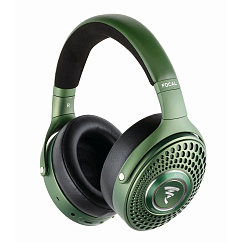
Multipoint: yes
Brand: Focal
Headphone type: wireless
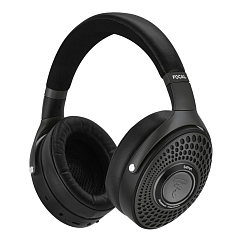
Detachable microphone: yes
Multipoint: yes
Headset type: stereo

Brand: Focal
Headphone type: wireless
The lowest frequency, Hz: 15

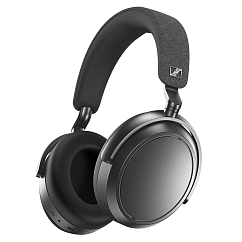
Brand: Sennheiser
Headphone type: wireless
The lowest frequency, Hz: 6
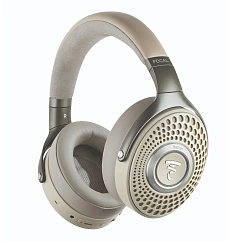
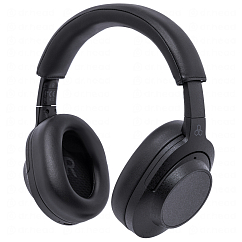
Brand: Final Audio
Headphone type: wireless
The lowest frequency, Hz: 20
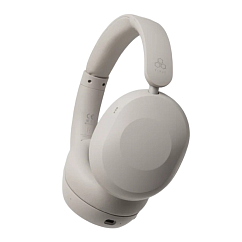
Multipoint: yes
Brand: Final Audio
Headphone type: wireless