










Silent Cinema: How to Connect Wireless Headphones to Your TV
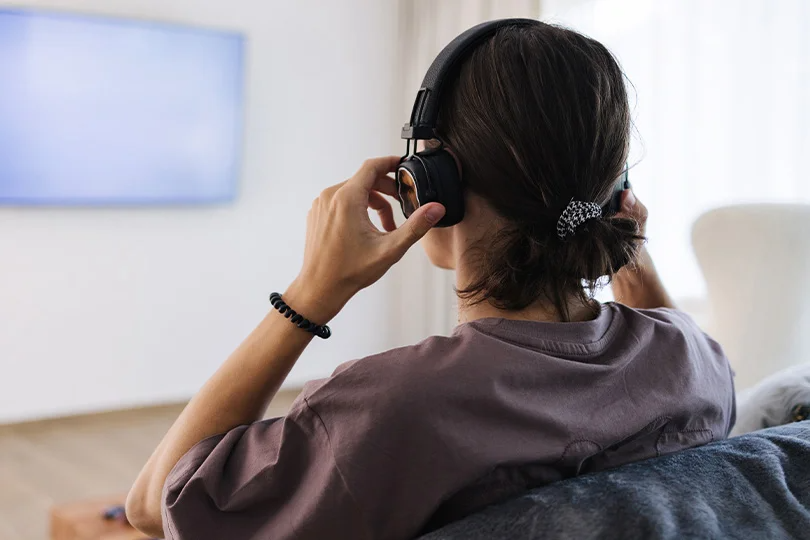
We have all been there: you want to watch an action movie at full volume, but the rest of the house is asleep. Or perhaps you simply want to hear every whisper of dialogue without cranking the TV speakers — which, let’s be real, is getting increasingly difficult in the modern age of cinema.
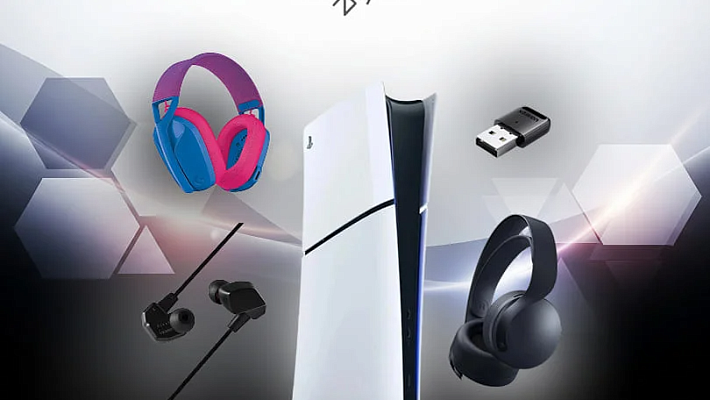
Connecting wireless headphones to your TV is the perfect solution. While Bluetooth is the standard today, older TVs might need a helping hand. Whether you have the latest OLED or a trusted older model, here is your step-by-step guide to cutting the cord.
Contents
Method 1: Built-in Bluetooth (For TVs made after 2018)
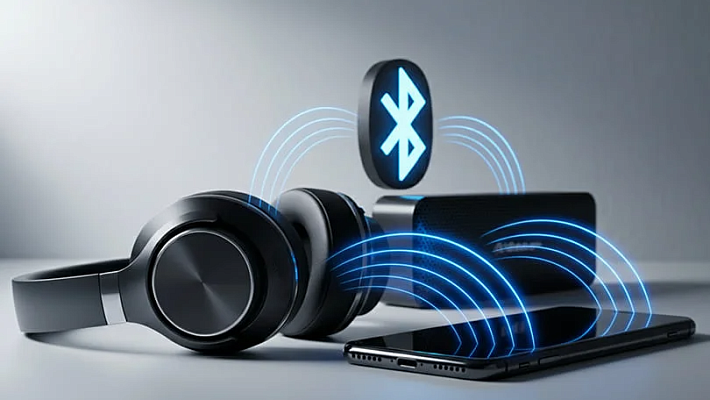
Most modern Smart TVs (Samsung, LG, Sony, etc.) come with Bluetooth transmitters built in. This is the easiest method.
How to Connect:
- Enter Pairing Mode: Put your headphones into pairing mode. Usually, this involves holding the power or Bluetooth button for 3–5 seconds until the LED light flashes blue or white.
- TV Settings: On your TV, navigate to Settings >Sound (or Audio Output) >Bluetooth Speaker List.
- Select & Connect: Your TV will scan for devices. Select your headphones from the list.
- Confirm: Once connected, the TV audio should automatically switch to your headphones.
Pro Tip: If the TV asks for a PIN code, try 0000, 1234, or 1111.

Multipoint: yes
Brand: Sennheiser
Headphone type: wireless, wired
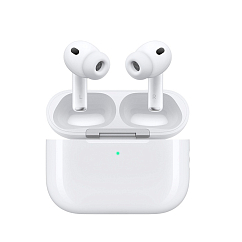
Headset type: stereo
Brand: Apple
Type of wireless headphones: True Wireless
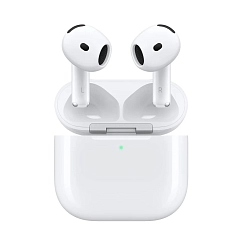
Headset type: stereo
Brand: Apple
Type of wireless headphones: True Wireless
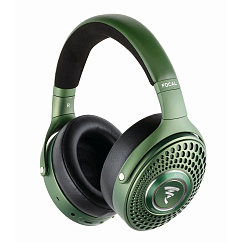
Multipoint: yes
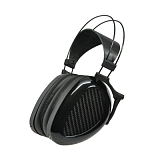
Brand: Focal
Headphone type: wireless
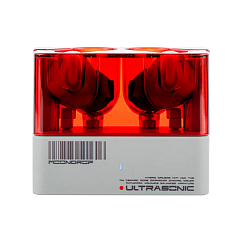
Brand: MoonDrop
Type of wireless headphones: True Wireless
Bluetooth version: 5.3
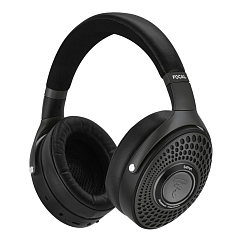

Headset type: stereo
Brand: Apple
Type of wireless headphones: True Wireless

Headset type: stereo
Brand: Bose
Type of wireless headphones: True Wireless

Headset type: stereo
Brand: Noble Audio
Type of wireless headphones: True Wireless
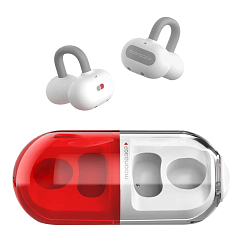
In-Ear headphone type: true wireless
Multipoint: yes
Brand: MoonDrop
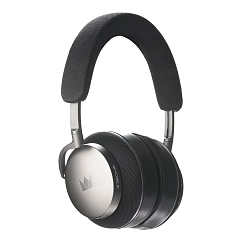
Detachable microphone: yes
Multipoint: yes
Headset type: stereo

Brand: Focal
Headphone type: wireless
The lowest frequency, Hz: 15
Method 2: The Bluetooth Transmitter (For Older TVs)
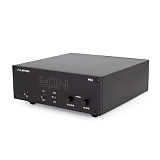
If your TV doesn't have Bluetooth, or if the built-in Bluetooth has high latency (lip-sync delay), you need an external Bluetooth Transmitter. This small device plugs into your TV and sends the audio to your headphones.
Connection Options:
- Optical (Toslink): The best quality. It uses a fiber-optic cable (square connector with a red light) for digital sound.
- 3.5mm (AUX): The standard headphone jack found on the side or back of most TVs.
- RCA (Red/White): Often found on older TVs. You will need an RCA-to-3.5mm adapter.
Recommended Setup: Plug the transmitter into the TV's Optical Out, put the transmitter in pairing mode, and it will auto-connect to your headphones.
Method 3: RF Base Station Headphones (The "Plug & Play" Solution)
Before Bluetooth took over, Radio Frequency (RF) headphones were the king of TV audio. They consist of a dedicated headset and a charging dock/transmitter that plugs into the TV.
Why choose them?
- Zero Latency: RF technology has virtually no audio delay, perfect for gaming and fast-paced movies.
- Range: They often work through walls and have a range of up to 50–100 meters.
- Ease of Use: No pairing required. Just pick them up from the dock, and they work.
This is an ideal solution for seniors or anyone who wants a system dedicated strictly to the TV.
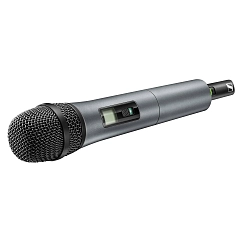
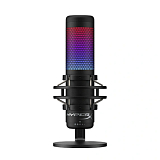
Diaphragm size: large diaphragm
Microphone polar pattern: cardioid
Microphone type: dynamic
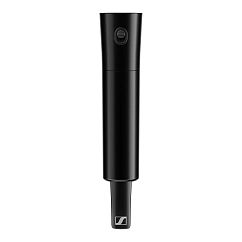


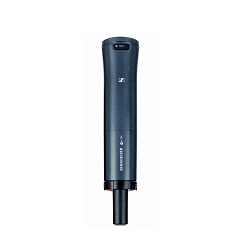
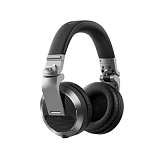
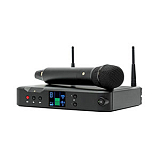
Brand: Sennheiser
: 45
Frequency bandwidth, MHz: 42


Brand: Sennheiser
: 46
Frequency bandwidth, MHz: 42
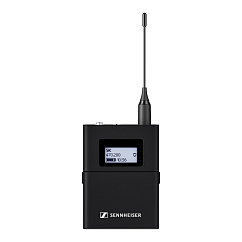

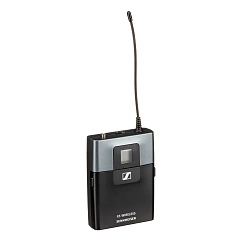

Brand: Sennheiser
: 46
Frequency bandwidth, MHz: 42
Method 4: The Wi-Fi / App Hack
If you don't want to buy extra hardware, you might be able to use your smartphone as a bridge.
- Smart TV Apps: Apps like LG ThinQ or Samsung SmartThings often have a "Private Listening" feature. The TV sends audio to your phone via Wi-Fi, and you listen through headphones connected to your phone.
- Streaming Boxes: If you use an Apple TV, you can connect AirPods directly to it. Roku devices also offer private listening via their mobile app.
Troubleshooting Common Issues
1. Lip-Sync Delay
- Cause: Standard Bluetooth has a slight lag.
- Fix: Look for headphones and transmitters that support aptX Low Latency or aptX Adaptive. Alternatively, check if your TV settings have an "A/V Sync" or "Game Mode" option to adjust the timing.
2. No Sound from Headphones
- Fix: Go to your TV's Sound Settings and ensure the Audio Output is set to "Optical" or "Bluetooth" instead of "TV Speakers." For Optical connections, ensure the Digital Audio Format is set to PCM (not Dolby Digital).
3. Interference / Dropouts
- Fix: Move other Bluetooth devices (like phones or tablets) away from the TV. Ensure you are within 5–7 meters of the screen.
The Verdict
Wireless headphones can transform your home entertainment experience, offering immersion without disturbance.
- For convenience: Use your TV's built-in Bluetooth.
- For older TVs: Use a Bluetooth Transmitter.
- For zero delay and long range: Choose an RF Base Station system.
Visit the Dr.Head showroom in Dubai to test different TV headphones and transmitters. Our team can help you find the perfect setup to ensure you never miss a line of dialogue again.