

























How to Reset Your Earbuds to Factory Settings: A Complete Guide for Any Brand
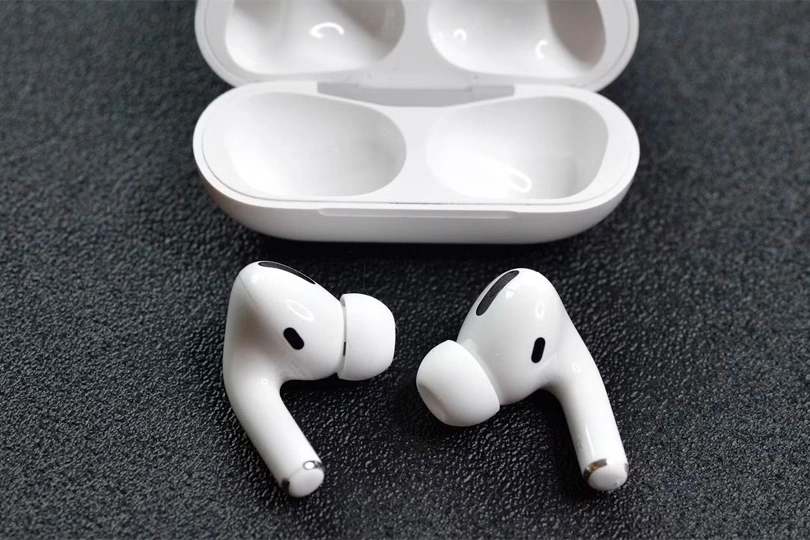
The TWS earbuds market continues to evolve, with advancements in Bluetooth technology and more efficient audio codecs. However, connection issues, sync problems, and audio dropouts can still disrupt your listening experience— and no brand is entirely immune to these glitches.
Fortunately, many of these issues can be resolved with a simple reset and reboot. This process gives your earbuds’ software a fresh start, clearing out any errors that may have built up over time.
In this article, we’ll guide you through the steps to reset any pair of TWS earbuds, no matter the brand.
Contents
Wireless Headphones
Headset type: stereo
Brand: Apple
Type of wireless headphones: True Wireless
Headset type: stereo
Brand: Apple
Type of wireless headphones: True Wireless
Brand: MoonDrop
Type of wireless headphones: True Wireless
Bluetooth version: 5.3

Headset type: stereo
Brand: Apple
Type of wireless headphones: True Wireless

Headset type: stereo
Brand: Bose
Type of wireless headphones: True Wireless

Headset type: stereo
Brand: Noble Audio
Type of wireless headphones: True Wireless
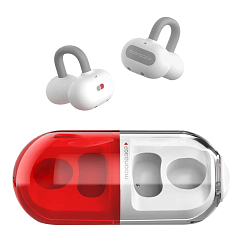
In-Ear headphone type: true wireless
Multipoint: yes
Brand: MoonDrop
Brand: MoonDrop
Type of wireless headphones: True Wireless
Bluetooth version: 6.0
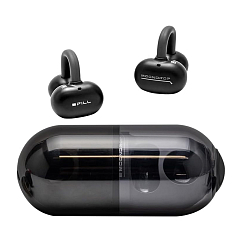
In-Ear headphone type: true wireless
Multipoint: yes
Brand: MoonDrop

Brand: Apple
Type of wireless headphones: True Wireless
Bluetooth version: 5.0

Headset type: stereo
Brand: Noble Audio
Type of wireless headphones: True Wireless

Headset type: stereo
Brand: MoonDrop
Type of wireless headphones: True Wireless
Brand: MoonDrop
Type of wireless headphones: True Wireless
Bluetooth version: 5.4

Headset type: stereo
Brand: Bowers & Wilkins
Type of wireless headphones: True Wireless

Headset type: stereo
Brand: Noble Audio
Type of wireless headphones: True Wireless
General Reset Guide for TWS Earbuds with a Button on the Charging Case
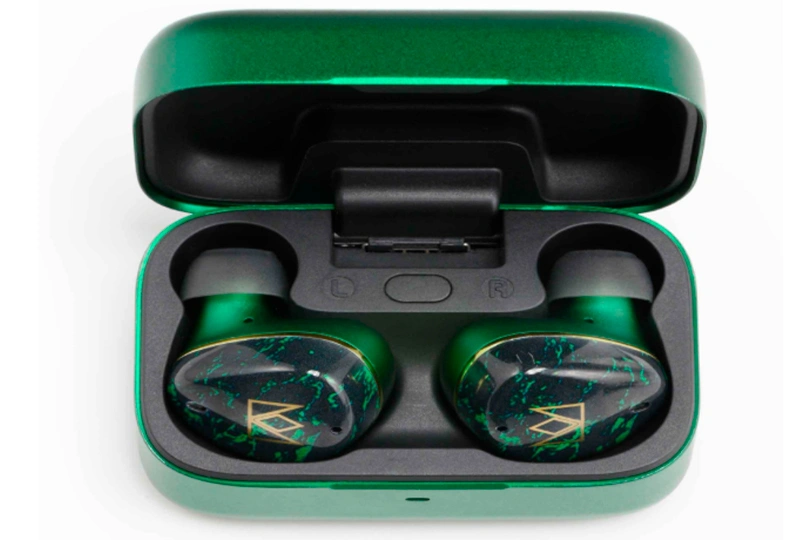
Think of the charging case as more than just a battery — it’s the control hub. Since space on the earbuds is limited, essential features like reset and manual pairing are often built into a discreet button on the case. Sleek, smart, and seriously useful.
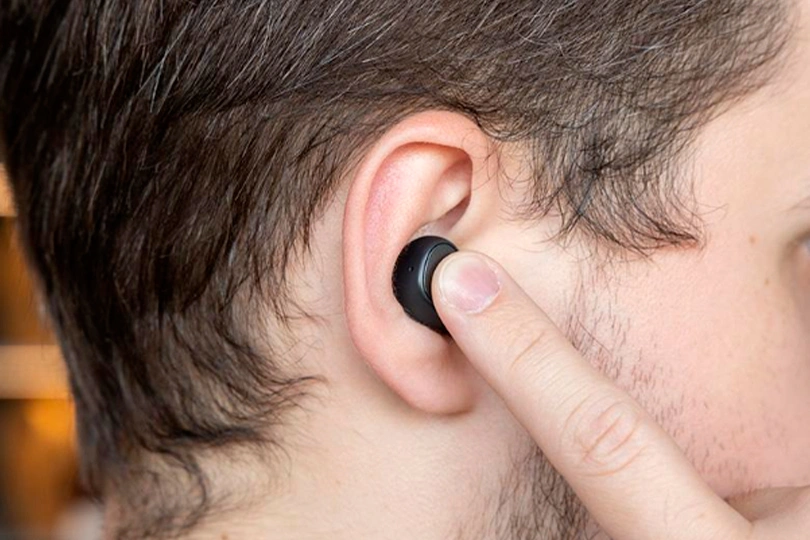
While many brands offer extra settings through their companion apps, the reset function is almost always available without needing a connection — especially handy when pairing fails. That’s why most manufacturers include a physical reset button right on the charging case.
Here’s how to reset most TWS earbuds using the case button:
- Open your Bluetooth settings on the paired device. If your earbuds aren’t currently connected, skip to step 4.
- Find your earbuds in the list and tap on the model’s name.
- Select “Forget This Device.” In some cases, a single tap will disconnect them.
- Place the earbuds back in the case and keep the lid open.
- Press and hold the case button for 10–15 seconds. Watch for the indicator light — a change in color or blink pattern usually means the reset was successful.
- Reconnect your earbuds through Bluetooth as if pairing for the first time.
Reset Guide for TWS Earbuds Without a Button on the Case
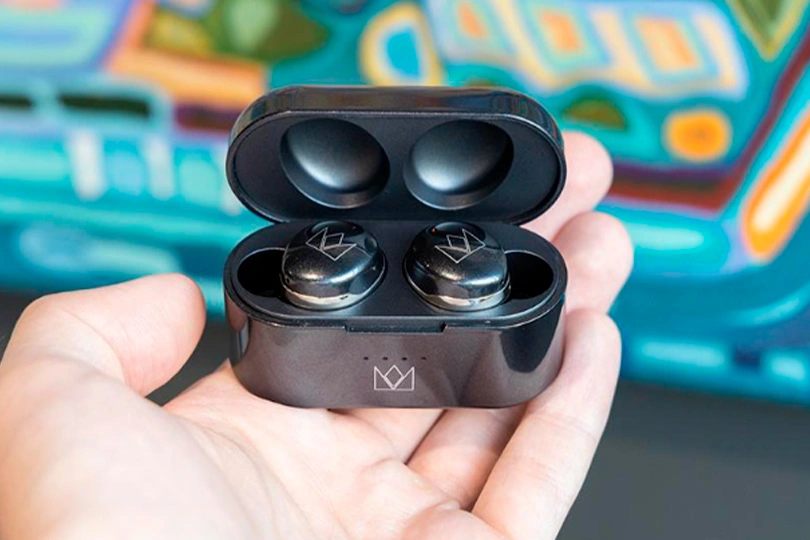
Some true wireless earbuds (TWS) don’t include a physical reset button on the case — Bose QuietComfort Ultra Earbuds, for example. In these cases, you'll need to use either physical buttons on the earbuds themselves or touch controls. Here's how to reset them depending on the control type:
Reset Using the Power Button (on the Earbuds)
- Open Bluetooth settings on your connected smartphone, tablet, or laptop.
- Tap your earbuds' name in the device list.
- Select “Forget This Device.” (On some devices, just tapping the name disconnects it.)
- Press and hold the power button on each earbud until the LED light changes color or brightness—this usually signals the reset is complete.
Reset Using Touch Controls
For Bose QuietComfort Ultra Earbuds, skip this step and insert the earbuds into your ears instead.
- Go to Bluetooth settings on your phone or computer.
- Select and forget your earbuds from the list of connected devices.
- Place the earbuds in the charging case and leave the lid open.
- Touch and hold both earbud sensors simultaneously for about 10 seconds, until:
- You hear a reset tone, or
- The LED light changes (color, flash pattern, or brightness).
- For Bose QuietComfort Ultra Earbuds, instead of touch-holding:
- Place both earbuds in the case
- Wait 30 seconds
- Then try reconnecting them via Bluetooth.
Frequently Asked Question
What does a factory reset do?
- It restores your earbuds to their default settings, which can clear out bugs or glitches that may have built up over time.
- It removes any custom settings configured through the companion app.
- Firmware updates usually remain installed even after a reset.
- Common issues like connection drops, audio cutting out, or one earbud not working are often resolved with a factory reset.
What if my earbuds won’t reset?
If your earbuds aren't responding to a reset:
- Check the battery level
- A reset requires power, and if the battery is low or dead, the process may not work.
- Place the earbuds in the case and charge them for at least 15–30 minutes, then try again.
- Consider servicing
- If charging doesn’t help, the issue may be hardware-related.
- Contact the manufacturer’s service center or visit a trusted repair shop for further assistance.
Conclusion
Now you know how to reset your True Wireless earbuds—whether they use physical buttons or touch controls—and what to try if things don’t go as planned. We hope the reset helps resolve any issues, so you can get back to enjoying your favorite music without interruptions or connectivity problems.
Did the general reset method work for your earbuds, or did you have to try something more advanced?
Know a simpler method we didn’t mention?
Share your experience or tips in the comments below — we’d love to hear from you!
Wireless Headphones
Headset type: stereo
Brand: Apple
Type of wireless headphones: True Wireless
Headset type: stereo
Brand: Apple
Type of wireless headphones: True Wireless
Brand: MoonDrop
Type of wireless headphones: True Wireless
Bluetooth version: 5.3
Headset type: stereo
Brand: Apple
Type of wireless headphones: True Wireless
Headset type: stereo
Brand: Bose
Type of wireless headphones: True Wireless
Headset type: stereo
Brand: Noble Audio
Type of wireless headphones: True Wireless
In-Ear headphone type: true wireless
Multipoint: yes
Brand: MoonDrop
Brand: MoonDrop
Type of wireless headphones: True Wireless
Bluetooth version: 6.0
In-Ear headphone type: true wireless
Multipoint: yes
Brand: MoonDrop
Brand: Apple
Type of wireless headphones: True Wireless
Bluetooth version: 5.0
Headset type: stereo
Brand: Noble Audio
Type of wireless headphones: True Wireless
Headset type: stereo
Brand: MoonDrop
Type of wireless headphones: True Wireless
Brand: MoonDrop
Type of wireless headphones: True Wireless
Bluetooth version: 5.4
Headset type: stereo
Brand: Bowers & Wilkins
Type of wireless headphones: True Wireless
Headset type: stereo
Brand: Noble Audio
Type of wireless headphones: True Wireless