
























How to Connect Two Bluetooth Headphones to a PC and Listen to Music
Sharing an experience is one of life's great pleasures. Whether you're watching a movie with a partner, gaming with a friend, or listening to a new album together, sound is a huge part of the moment. But on a PC, this simple act of sharing can become surprisingly complicated. Laptops and computers are designed as single-user devices, and getting audio to play on two headphones at the same time isn’t a standard feature. One person gets the headphones, and the other has to listen through speakers, disturbing the peace and quiet.
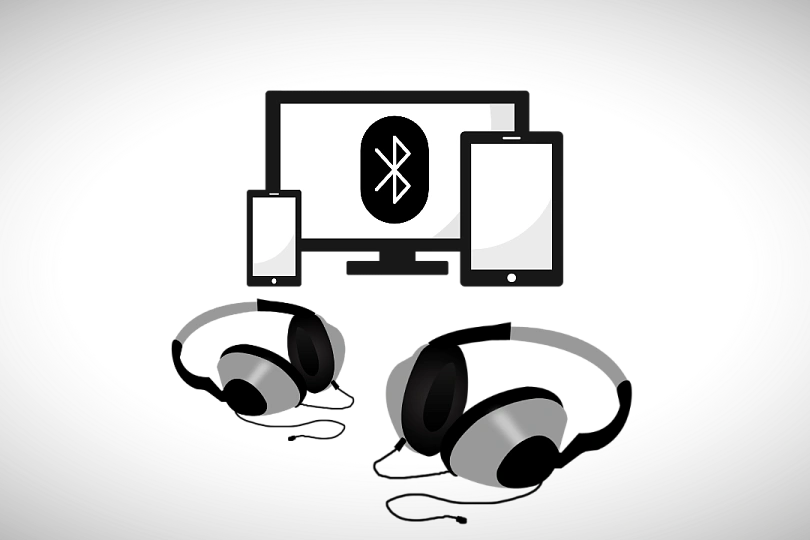
But what if you could connect two Bluetooth headphones to one PC? What if you and a friend could both wear wireless headphones and enjoy the same audio simultaneously?
It is absolutely possible, though it requires a few tricks. The same goes for connecting multiple wired headphones. This guide will walk you through all the methods, from the simplest hardware solutions to powerful software configurations. We’ll cover how to connect two pairs of wired headphones, multiple Bluetooth headphones, and even how to use headphones and speakers together. Let's dive in and set up your shared listening experience.
Contents
How to Use Two or More Wired Headphones on Your PC or Laptop
Before we tackle the wireless world, let's look at the classic wired connection. If you have two pairs of standard headphones with a 3.5mm jack, getting them to work on one PC is straightforward, and you have a few reliable options to choose from.
Purchase a Headphone Splitter
This is by far the easiest and most common solution. A headphone splitter is a small adapter with one 3.5mm plug on one end and two (or more) 3.5mm jacks on the other. It physically splits the single analog audio signal from your computer into two identical signals.
The process is incredibly simple:
- Plug the splitter into the headphone jack on your PC or laptop. This is usually colored green or marked with a headphone icon.
- Plug both pairs of your headphones into the two jacks on the splitter.
- Your computer will see this as one connected device, and both headphones will play the same audio.
This method is affordable and requires no software configuration. However, because you are splitting an analog signal, there can be a slight drop in volume on both headphones, though it's usually not significant.
Configure Control Panel Settings with Stereo Mix
For a software-only solution, Windows has a built-in feature that can duplicate an audio stream to a second device. It’s called "Stereo Mix," and while it’s a bit hidden, it’s very powerful. This method is ideal if you have headphones that use different ports, for example, one in the headphone jack and one connected via a USB adapter.
Here’s how to set it up:
- Connect both pairs of headphones to your PC.
- Right-click the speaker icon in your taskbar and select "Sounds."
- In the new window, go to the "Recording" tab.
- Right-click anywhere in the empty space and make sure "Show Disabled Devices" and "Show Disconnected Devices" are checked.
- "Stereo Mix" should appear. Right-click it and select "Enable."
- Right-click "Stereo Mix" again and go to "Properties."
- In the Properties window, switch to the "Listen" tab.
- Check the box that says "Listen to this device."
- From the "Playback through this device" dropdown menu, select your second pair of headphones. Click "Apply."
- Now, go back to the "Playback" tab in the main Sound window. Select your first pair of headphones and click "Set Default."
Now, your PC will play audio to your default device (the first headphones), and Stereo Mix will listen to that audio and broadcast it to the second pair of headphones.
Utilize an Audio Mixer for Output Management
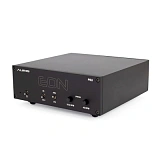
If you need professional-level control over your sound, an external audio mixer is the ultimate solution. This is a piece of hardware that audio engineers, streamers, and musicians use to manage multiple sound sources and outputs. While it's overkill for simply watching a movie together, it offers the most flexibility.
An audio mixer allows you to plug in multiple headphones and often gives each one its own physical volume control knob. The mixer connects to your PC, usually via USB, and takes over as your computer's main sound device, giving you complete manual control over where your audio goes.
How to Use Multiple Bluetooth Headphones on a PC or Laptop
Connecting multiple Bluetooth headphones is where things get tricky. Most computers with built-in Bluetooth can only maintain a stable audio connection with one Bluetooth device at a time. Trying to pair a second set of headphones will usually disconnect the first. However, there are excellent hardware and software workarounds.
Apply a Bluetooth Adapter
The most reliable way to connect two Bluetooth headphones to a single PC is with a dedicated Bluetooth audio transmitter. This is a small device, often looking like a USB stick, that is specifically designed to handle multiple audio streams.
Here’s how it works:
- The adapter plugs into your PC's USB port for power and data, or into its 3.5mm audio jack for the sound signal.
- You don't pair your headphones to the PC anymore. Instead, you put the adapter and both your headphones into pairing mode, and they connect directly to the adapter.
- The adapter then manages the connections and streams the same audio to both wireless headphones simultaneously.
When shopping for one, look for a transmitter that explicitly supports "Dual Link" or "Dual Stream." Many of these advanced adapters also support codecs like aptX Low Latency, which ensures the audio is perfectly in sync, a crucial feature for watching video content.
Utilize the Virtual Audio Cable Mixer
For those who love a technical challenge, a software solution using a program like Voicemeeter Banana can achieve the same result. This method is powerful but requires some setup. The core idea is to create a virtual audio device that can split the signal to your multiple Bluetooth devices.
The basic concept is:
- Install a virtual audio cable program and a mixer like Voicemeeter.
- Set your PC’s main audio output to the virtual cable’s input.
- In Voicemeeter, you select the virtual cable as your hardware input.
- Then, you can assign up to five hardware outputs. You would select your first pair of Bluetooth headphones as output A1 and your second pair as output A2.
This setup routes all PC sound through Voicemeeter, which then broadcasts it to both of your connected devices. It offers immense control but has a steep learning curve.
Using Bluetooth and Wired Headphones Simultaneously on PC
This final section addresses some common questions about mixing and matching audio devices on one computer.
Reasons Why Dual Headphones Aren't Standard for Computers
The primary reason is that a computer’s operating system, whether it's Windows or macOS, is built around a single-user philosophy. The entire audio system is designed to have one default audio device for output. Managing multiple audio streams perfectly synchronized is complex and not a feature most users need on a day-to-day basis. This is why it requires the special hardware or software solutions we've discussed to make it happen.
Is It Possible to Use Two USB Headsets on One Computer?
Using two USB headsets is particularly challenging because each USB headset acts as its own separate sound card. The computer sees two independent audio devices, and by default, it will only send sound to the one set as the default playback device. For this scenario, the only reliable solution is an advanced software mixer like Voicemeeter, which can grab the main audio and force it to play on both USB devices at the same time.
Using Headphones and Speakers Together on Your PC
This is a very common request, and it’s easily solved using the "Stereo Mix" feature we covered earlier. By setting your main speakers as the default playback device and configuring Stereo Mix to "Listen" through your headphones, you can have audio playing from both simultaneously. This is great for situations where one person wants to listen loudly through headphones while others in the room listen at a lower volume through the speakers.
The Bottom Line
Congratulations, you're now equipped with the knowledge to connect multiple headphones to your PC. Whether you choose a simple splitter or a powerful transmitter, you can finally share your audio experience with ease. And if you're looking for the perfect Bluetooth adapter or a new pair of wireless headphones to complete your setup, we invite you to our Dubai showroom. Let's find your perfect sound, together.