
























Comprehensive Guide: Connecting Bluetooth and Wired Speakers to Your PC, Laptop, or TV
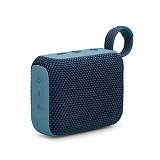
A wireless speaker is all about freedom. It’s about taking your favorite music, podcasts, or the audio from a movie and placing it anywhere in the room, without being tethered by cables. But sometimes, getting that freedom to work isn't as simple as pressing a button. Whether you're trying to connect your new Bluetooth speaker to a PC, laptop, or TV, the pairing process can sometimes be frustrating.
Don't worry. This guide is here to make it easy. We'll walk you through every step for every device, from the simplest wired connection to troubleshooting tricky Bluetooth issues on Windows. Let's get started.
Contents
Types of Speakers
While this guide focuses on connecting a Bluetooth speaker, it's helpful to know that most speakers connect to a computer in one of three ways: a 3.5mm audio jack, a USB cable, or a wireless Bluetooth connection. We'll cover all of them.
Connecting via 3.5mm Audio Jack
This is the classic, old-school method. It’s a reliable analog connection that works with nearly any computer or speaker that has a headphone jack.
Identifying the Audio Ports
First, you need to locate the correct ports. On your PC or laptop, look for a small, round port, usually marked with a headphone icon or colored green. This is the line-out or headphone jack. Your speaker will have a similar port, often labeled "AUX" or "Audio In."
Connecting Speakers to Your Computer
The process is straightforward:
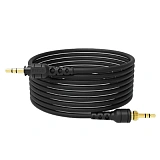
- Plug one end of a 3.5mm audio cable into the headphone jack on your computer.
- Plug the other end into the AUX port on your speaker.
- Power on the speaker and set its source to "AUX."
- On your PC (especially Windows), you may need to click the sound icon in the taskbar and ensure the output device is set to "Speakers" or "Realtek Audio."
Connecting via USB
A USB connection is digital, meaning the speaker has its own built-in sound card (DAC). This can often provide a cleaner sound experience than the computer's headphone jack.
Connecting USB Speakers
- Connect the USB cable from the speaker to an available USB port on your PC or laptop.
- The speaker will draw power directly from the USB port.
- Your computer should automatically detect the new audio device and may install a necessary driver.
- Set the USB speaker as your default audio output. In Windows, go to Sound Settings, and in the "Output" section, choose your speaker from the list.
Connecting via Bluetooth
This is the most common method for a wireless speaker. The pairing process is simple once you know the steps.
Enabling Bluetooth on Your Computer
First, you need to turn on the Bluetooth function on your computer.
Windows 10 & 11
- Click on the "Action Center" icon in the bottom-right corner of the taskbar.
- Find the Bluetooth tile and ensure it is highlighted (turned on). If you don't see it, go to Settings > Devices > Bluetooth & other devices and use the toggle switch to enable Bluetooth.
Ubuntu
Go to the top bar, click the system menu, and select the Bluetooth icon to turn it on.
Mac
Go to the Apple menu > System Preferences > Bluetooth and turn Bluetooth on.
Put the headphones or speaker into pairing mode
This is a crucial step. Nearly every Bluetooth device has a button, often with the Bluetooth symbol, that you need to press and hold for a few seconds. This puts the device into pairing mode, making it discoverable by your computer. The speaker will usually have a flashing light or make a sound to indicate it's in pairing mode. Refer to your speaker's manual for specific instructions.
Pair the devices and set the sound output on the computer
Once your speaker is in pair mode, the pairing process on the computer is the final step.
Pairing Bluetooth Speakers
- On your computer, go to the Bluetooth settings menu.
- Click "Add a device" or "Add Bluetooth device."
- Your computer will search for available devices. Select your Bluetooth speaker from the list.
- The devices will pair. Once the connection is established, your PC will usually set the new speaker as the default audio output.
- If you don't hear any sound, click the speaker icon in the taskbar and select your Bluetooth speaker from the list of playback devices.
Connecting a Bluetooth Speaker to TV and Smart TV
Connecting a wireless speaker to a TV is a great way to improve its sound for a more immersive movie-watching experience.
How do Bluetooth Speakers Work with TV
Most modern Smart TVs have built-in Bluetooth functionality. The process is very similar to connecting to a computer. The TV acts as the audio source and sends the signal wirelessly to the speaker.
How to Connect a Bluetooth Speaker to Samsung TV
- Put your Bluetooth speaker into pairing mode.
- On your Samsung TV remote, press the Home button and go to Settings.
- Navigate to Sound > Sound Output.
- Select Bluetooth Speaker List.
- Choose your speaker from the list and select "Pair and connect."
How to Connect a Bluetooth Speaker to Philips TV
- Enable pairing mode on your speaker.
- On your Philips TV, go to Settings > Wireless and Networks > Bluetooth.
- Select "Scan for device."
- Find your speaker in the list and start the pairing process.
How to Connect a Bluetooth Speaker to TCL TV
- Put your speaker into pairing mode.
- On your TCL TV, go to Settings > Remotes & Accessories.
- Select "Add accessory."
- Your TV will search for the device. Select your speaker to pair.
How to Connect a Bluetooth Speaker to Smart TV
For almost any smart TV, the process is the same: enable pairing mode on your speaker, then go into your TV's Settings menu, find the Bluetooth or "Sound Output" section, and search for a new device.
Connecting Wireless Speakers to Laptop
Connecting a wireless speaker to a laptop is identical to connecting to a PC. Just follow the instructions provided in the "Connecting via Bluetooth" section above, whether you are using Windows, macOS, or Ubuntu. Ensure your laptop has Bluetooth enabled, put your speaker in pairing mode, and pair them through the system settings.
Troubleshooting Common Issues
Sometimes, things don't work on the first try. Here's how to troubleshoot the most common problems.
No Sound
This is the most common issue.
- Check Volume: Ensure the volume is turned up on both your computer and the speaker itself.
- Check Output Device: This is the #1 culprit. Click the speaker icon in your system taskbar. You will see a list of all available audio devices. Make sure your Bluetooth speaker is selected. Note that Windows can sometimes switch back to the internal speakers after a restart.
Static or Distortion
- Check Distance: You might be too far from your computer. Bluetooth range is typically around 10 meters, but walls and other obstacles can reduce this.
- Check for Interference: Move away from other wireless devices like Wi-Fi routers or even other Bluetooth devices.
- Reconnect: Sometimes, simply disconnecting and reconnecting the speaker will solve the issue.
Audio Quality Issues
- Check Codec: Some Bluetooth codecs provide better sound quality than others. Your computer and speaker will automatically negotiate the best available codec, but sometimes a system update or driver issue can force a lower-quality connection.
- Update Drivers: Ensure your computer's Bluetooth and audio drivers are up to date.
Device Not Found
- Is Pairing Mode On? Double-check that your speaker is actually in pairing mode. This is the most common reason a device isn't found.
- Is Bluetooth On? Ensure Bluetooth is enabled on your PC or laptop.
- Restart Everything: Turn both your speaker and your computer off and on again.
Connection Drops
- Update Drivers: The number one cause of unstable Bluetooth connections is an outdated driver. Go to your computer or motherboard manufacturer's website and download the latest Bluetooth driver.
- Power Settings: In Windows, go to Device Manager, find your Bluetooth adapter, right-click, go to Properties, and in the "Power Management" tab, uncheck the box that says "Allow the computer to turn off this device to save power."
Audio Device Not Recognized
- Use a Bluetooth Adapter: If your PC doesn't have built-in Bluetooth, you will need a Bluetooth adapter. A simple USB Bluetooth adapter is an easy and affordable option.
- Reinstall Driver: Go to Device Manager, find your Bluetooth device in the list, right-click, and "Uninstall device." Then restart your computer. Windows will automatically reinstall the driver, which can fix recognition problems.
The Bottom Line
Connecting a Bluetooth speaker, whether it's to your PC, laptop, or TV, shouldn't feel like rocket science. As you can see, most issues can be solved with a few simple checks — making sure the right device is selected in your sound settings, updating a driver, or just giving the connection a good ol’ reboot. Congratulations: now, you can troubleshoot like a pro.
But to fix a connection and start the real fun, you need to find a great pair of speakers first — that's why we invite you to our Dubai showroom. Bring your laptop or smartphone, test the pairing process, and find the wireless speaker that will make all this effort worthwhile. Let's find your perfect sound, together.