










Comprehensive Guide: How to Check and Test Your Microphone on Windows 10 or Laptop
You’re about to jump into an important video call, a gaming session with friends, or record a quick voice note. You click connect, say "hello," and... silence. Is the mic on? Is it muted? Is it even working? This moment of uncertainty is something every Windows user has faced. Before you start digging through complex settings, there's a much easier way to get peace of mind.
This guide will show you how to quickly and accurately test your mic. We'll start with a simple online tool that gives you an answer in seconds, and then we’ll walk through a complete troubleshooting guide to fix any issues you might encounter on your laptop or PC.
Use Online Mic Test to Check if Your Microphone Is Properly Set Up
The fastest way to determine if your hardware is working is to use a free online tool. Websites like Mic Test are designed for one purpose: to check your microphone without any software or downloads.
How to Test Your Mic?
The process couldn't be simpler. You navigate to the website, and it will immediately ask for permission to access your microphone. Once you click "Allow," the tool will activate; now, just start speaking. If you see a line or bar on the screen moving in time with your voice, congratulations — your device is working properly.
How Is the Microphone Being Tested?
These online tools work directly through your browser. When you grant access, the browser uses its built-in features to connect to your selected audio device and visualize the sound it picks up. The great benefit here is privacy and simplicity; the tool is simply showing you what your mic is hearing. No audio information is being recorded or stored.
The Problem with Checking the Mic with Software
Many applications, like Skype or Discord, have their own test features. While useful, they only tell you if the hardware works with that specific program. Sometimes, a device might work in one application but not another due to a settings conflict or a permission issue within the operating system. A software-specific check doesn't give you the full picture.
The Advantage of Testing Through the Browser
Using an online test is a universal check. If the tool detects your voice, you know that the microphone itself is connected and functioning, and that the basic drivers can see it. This is a crucial first step in troubleshooting. If it works online but not in a program, you’ve successfully narrowed down the problem to your software or Windows settings, not a broken device.
Troubleshooting Guide
So, what happens if the online test doesn't work, or if it works online but not in a specific app? Don't worry: the fix is usually a simple setting. Follow these steps.
Make Sure Apps Have Access to the Microphone
This is the most common issue on modern versions of Windows. For your privacy, the system requires you to manually allow applications to access your microphone.
- Open the Start Menu and go to Settings.
- Click on Privacy & security.
- Scroll down and select Microphone.
- Ensure that Microphone access is turned on. Then, scroll down the list and make sure the specific application you want to use also has its access turned on.
Windows Isn't Detecting the Microphone
If nothing is working, go back to basics. Check if the device is properly connected to your computer. If it's a USB mic, try a different port. If it has a physical mute button, make sure it isn't active. For a Bluetooth device, double-check that it is properly paired and connected.
The Microphone Volume Is Too Low or Does Not Appear to Be Working at All
The system might have your input volume set too low.
- Go to Settings > System > Sound.
- Scroll down to the Input section.
- Choose your input device from the dropdown list.
- Under Input volume, make sure the slider is not at 0. You can also click the "Start test" button here to have the system check the volume.
Others Cannot Hear Me in Skype Calls
If your mic works in an online test but not in an app like Skype, Zoom, or Discord, the problem is likely in the app's own settings. Every communication tool has its own audio menu. Open the settings in the program you're using, find the "Audio & Video" section, and make sure you have selected the correct input device from the dropdown list.
So What Do I Do if My Mic Still Isn't Working in Some Program?
If you’ve checked system permissions and the program's internal settings, the last step is to try reinstalling the program or updating your computer's audio drivers. If the problem persists after that, it may be time to consider a new microphone.
And if you want to find the perfect new device, we invite you to our Dubai showroom. From professional recording equipment to simple plug-and-play mics, we’re happy to help you find exactly what you need.


Arrival: 202531
Performer: Lady Gaga
Genre: Electronic, Hip Hop, Pop

Arrival: 202537
Performer: Charli XCX
Genre: Electronic, Pop

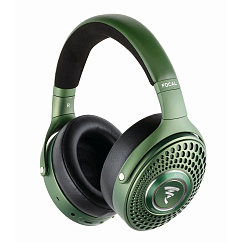
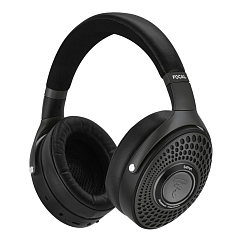
Multipoint: yes
Brand: Focal
Headphone type: wireless
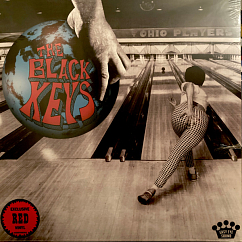
Arrival: 202537
Performer: The Black Keys
Genre: Rock