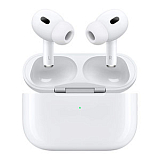













Unlock the Hidden Features: How to Update Your AirPods Pro Firmware

Did you know your AirPods Pro can get better over time without you spending a single dirham? Through firmware updates, Apple regularly adds massive new features, and you definitely don’t want to miss out on those.
The catch? There is no "Update Now" button. The process is automatic, but it often gets stuck if specific conditions aren't met. If you are wondering why you don't have the latest features yet, follow this guide to force the update and get the most out of your earbuds.
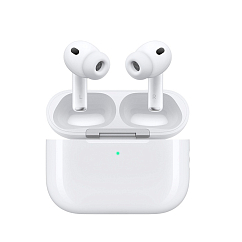
Headset type: stereo
Brand: Apple
Type of wireless headphones: True Wireless
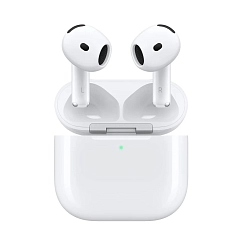
Headset type: stereo
Brand: Apple
Type of wireless headphones: True Wireless

Headset type: stereo
Brand: Apple
Type of wireless headphones: True Wireless

Brand: Apple
Type of wireless headphones: True Wireless
Bluetooth version: 5.0
Contents
How to Check Your Current Firmware
Before you try to fix anything, let’s see if you are already up to date.
On iPhone or iPad:
- Open Settings > Bluetooth.
- Find your AirPods Pro in the list.
- Tap the blue "i" icon next to the name.
- Scroll down to the "About" section and look for Version.
On Mac: System Settings > Bluetooth > Click the "i" next to your AirPods OR Hold the Option key > Click the Apple Menu > System Information > Bluetooth.
What to look for: Check the latest version online and compare it to what you see in your settings. If your device shows an older number, you are definitely missing out on new features.
The Update Ritual
Since you cannot manually click "install," you have to create the perfect environment for your iPhone to do it for you. Here is the golden rule:
- Update your Host: Ensure your iPhone, iPad, or Mac is running the latest OS version.
- Connect: Turn on Wi-Fi and Bluetooth.
- Charge: Place the AirPods in their case and connect the case to a charger. Ideally, get them to 50%+ battery.
- The Waiting Game: Close the lid. Place your iPhone right next to the case (within arm's reach).
- Leave them alone: Wait for 30 minutes. Do not open the lid, do not touch the devices.
After 30 minutes, open the lid, connect them to your phone, and check the version number again. By then, it should have already changed.
Troubleshooting: When It Just Won’t Update
Did you wait an hour and... nothing happened? It happens, don’t worry. Here’s some quick fixes you should try before getting upset.
- The Battery Check: Ensure both the case and the buds are charging. Clean the contacts inside the case with a Q-tip if necessary.
- The Hard Reset:
- Open the case lid.
- Hold the setup button on the back for about 15 seconds.
- Wait until the light flashes amber, then white.
- Re-pair them to your phone and try the "Update Ritual" again.
- Visit Us: If your AirPods still refuse to update or connect, bring them to the Dr.Head showroom in Dubai. We can diagnose if it’s a firmware glitch or a hardware failure and help you out.
Life Beyond Apple: Some Alternatives to Consider
We love the AirPods Pro for their ecosystem integration. But if you want a sound signature that prioritizes music over tech, consider these audiophile-approved alternatives available at Dr.Head:
- Final Audio: Known for obsessive attention to detail, Final Audio’s wireless models offer a soundstage and mid-range clarity that often beats Apple for pure music listening.
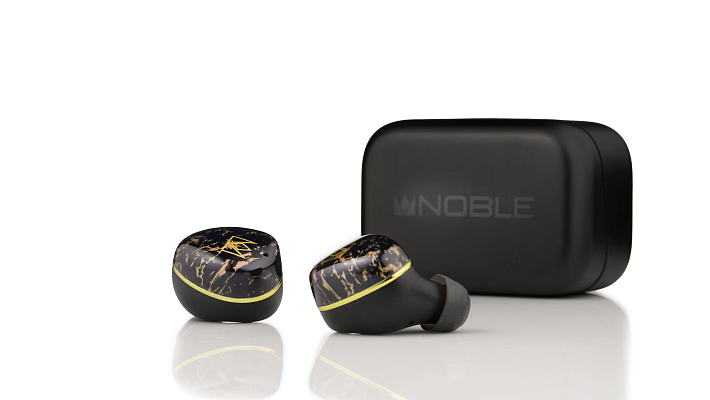
- Noble Audio: Founded by an audiologist, Noble focuses on rich, deep textures and premium driver technology.
- AG: A great choice for those who want professional audio tuning in a reliable, everyday package.

Headset type: stereo
Brand: Noble Audio
Type of wireless headphones: True Wireless

Headset type: stereo
Brand: Noble Audio
Type of wireless headphones: True Wireless

Headset type: stereo
Brand: Noble Audio
Type of wireless headphones: True Wireless

Headset type: stereo
Brand: Noble Audio
Type of wireless headphones: True Wireless

Headset type: stereo
Brand: Noble Audio
Type of wireless headphones: True Wireless

Headset type: stereo
Brand: Noble Audio
Type of wireless headphones: True Wireless
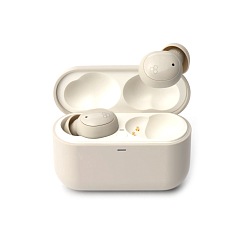
Headset type: stereo
Brand: Final Audio
Type of wireless headphones: True Wireless
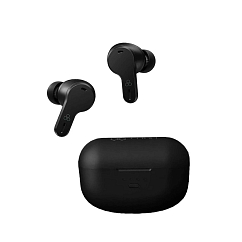
Brand: Final Audio
Headphone type: wireless
Bluetooth version: 5.2

Headset type: stereo
Brand: Noble Audio
Type of wireless headphones: True Wireless

Headset type: stereo
Brand: Final Audio
Type of wireless headphones: True Wireless

Brand: Noble Audio
Type of wireless headphones: True Wireless
Bluetooth version: 5.4
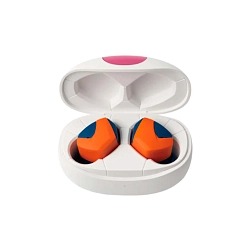
Brand: Final Audio
Type of wireless headphones: True Wireless
Bluetooth version: 5.2
The Verdict
Updating your AirPods is simple: Charge them, keep them close to your phone, and wait. It’s always worth the bare-minimum effort to unlock new features and get the absolute most out of your headphones.
However, if you feel limited by Apple’s sound or want to explore other high-end wireless audio, come visit our showroom in Dubai. Whether you need help updating your current pair or want to test-drive a pair of Noble Audio or Final earbuds, we are here to help you hear the difference.