










How to Pair Your Marshall Headphones: The Guide
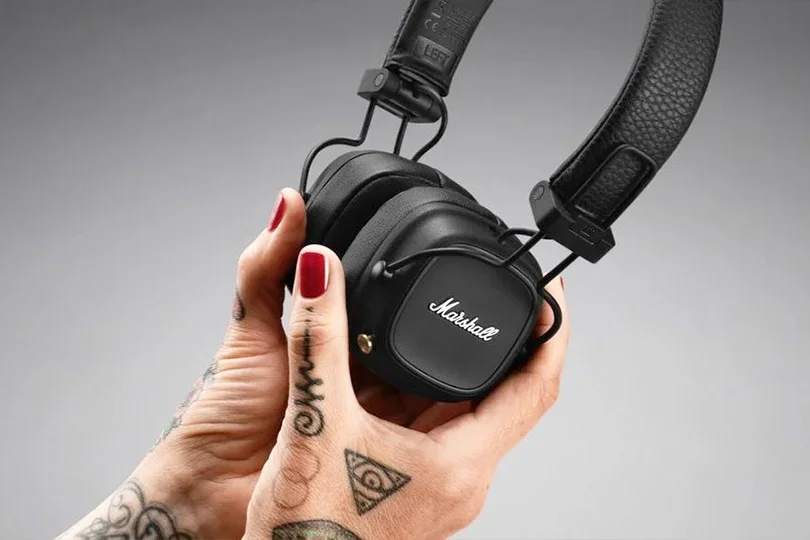
Marshall headphones are instantly recognizable. They carry the DNA of legendary stage amplifiers, offering iconic design and punchy, rock-forward sound. Whether you have the on-ear Major IV, the noise-cancelling Monitor II, or the TWS Minor/Motif series, they are built to be loud.
But before you can shred some solos, you need to connect them. While Marshall keeps things relatively simple, their unique "Control Knob" system can sometimes confuse first-time users.
In this guide, we will walk you through how to connect your Marshall headphones to any device, troubleshoot common issues, and reset them if things go silent.
Contents
The Old School Way: Wired Connection
Most over-ear Marshall headphones (like the Major and Monitor series) still feature a classic 3.5mm jack. This is a lifesaver when your battery dies or when you want zero latency.
The Setup:
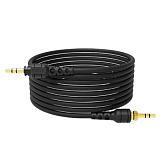
- Take the coiled cable — it looks like a vintage guitar cord.
- Plug one end into the headphones and the other into your source.
Important: Ensure the cable clicks in firmly. A loose connection often results in sound playing from only one side.
Keep in mind that if you have a modern smartphone (iPhone 15+ or most Androids), you don't have a headphone jack. You will need a USB-C to 3.5mm adapter. For older iPhones, you need a Lightning to 3.5mm adapter.
Going Wireless: Pairing with iPhone & Android
Connecting wirelessly requires putting the headphones into "Pairing Mode." On Marshall headphones, this is usually done via the Multi-Directional Control Knob (aka the gold joystick).
The Universal Steps:
- Start with headphones OFF.
- Enter Pairing Mode: Press and hold the Control Knob (or the pairing button on the case for TWS models) for about 4–5 seconds.
- Watch the LED: Wait until the light pulses DARK BLUE. If it turns white, it's just on. Keep holding until it's blue.
- On your Phone: Open Bluetooth settings.
- Select: Tap "Marshall Major IV" (or your specific model) in the list.
Note: For TWS models (Minor/Motif), keep the earbuds in the case with the lid open, then hold the button on the bottom/front of the case until the LED flashes blue.
Connecting to a Laptop
The process is similar, but computer drivers can sometimes be tricky.
On Mac:
- System Settings > Bluetooth.
- Put headphones in Pairing Mode (Blue blinking light).
- Click "Connect" when they appear nearby.
On Windows:
- Settings > Devices > Bluetooth & other devices > Add Bluetooth or other device.
- Make sure you select "Bluetooth" (Mice, keyboards, pens, or audio).
- Select your Marshall headset.
Pro-Tip: If the audio sounds low-quality (like a phone call) on Windows, ensure the output device is set to "Headphones (Marshall Stereo)" and NOT "Headset (Marshall Hands-Free)."
When Things Go Wrong: Troubleshooting & Reset
Is the connection dropping? Or maybe your phone can't find the headphones at all?
Quick Fixes:
- Check Battery: Low battery often causes connection instability.
- Interference: Move away from Wi-Fi routers or microwaves.
- Forget Device: Go to your phone's Bluetooth settings, find the headphones, and select "Forget This Device." Then re-pair.
Factory Reset:
If nothing else works, wipe the memory.
- For Major/Monitor: Press and hold the Control Knob/Source button for 10–15 seconds. The LED will usually flash rapidly or change color to amber to indicate a reset.
- For TWS (Minor/Motif): Place buds in the case, leave the lid open, and hold the case button for 10+ seconds until the LED flashes amber.
- Delete from Phone: Remove the old connection from your Bluetooth list before trying to pair again.
The Marshall App: Don't Skip It
Many users ignore the Marshall Bluetooth App, but it is essential. Here are the three main reasons you shouldn’t sleep on it.
- Firmware Updates: Fixes connectivity bugs.
- EQ Settings: Lets you adjust the bass and treble to your liking (Marshall sound is typically V-shaped, boosting bass and highs).
- ANC Control: Adjust noise cancellation strength on Monitor/Motif models.
Alternatives to Consider
We love Marshall for the vibe, but if you are looking for a different flavor of audio, Dr.Head Dubai stocks incredible alternatives:
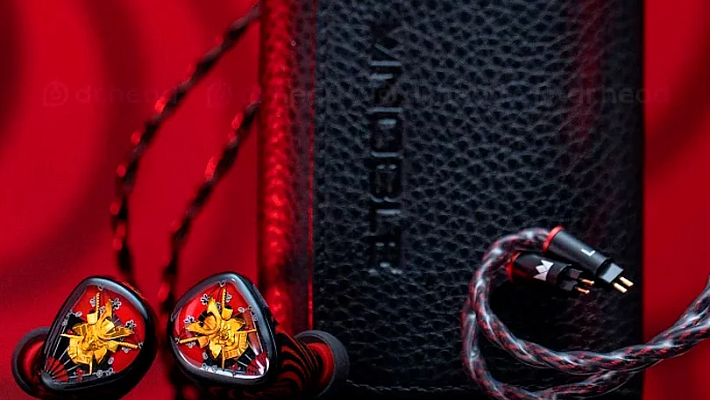
- Noble Audio: If you want true audiophile-grade wireless sound with rich textures and deep bass, Noble's TWS (like the FoKus series) are top-tier.
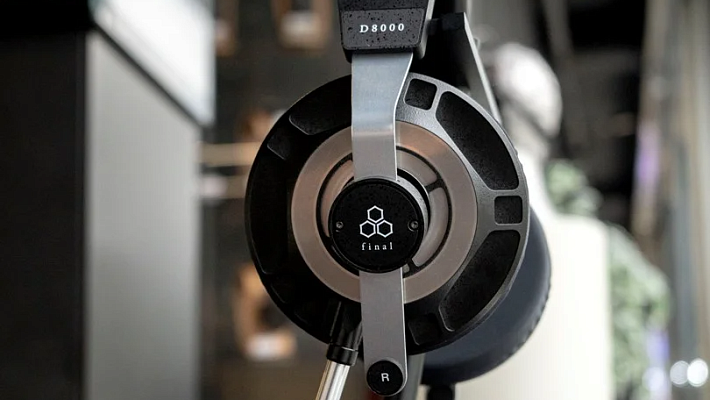
- Final Audio: For those who prefer natural, precise, and acoustic-focused sound. Their "ZE" series is legendary for clarity.
- AG: Excellent reliability and balanced sound for everyday use, often at a great price point.
The Verdict
Connecting Marshall headphones is straightforward once you master the "Control Knob." Remember: Blue Light = Pairing Mode.
If you are still having trouble connecting, or if you want to compare Marshall against other premium brands like Noble or Final, come visit us at the Dr.Head showroom in Dubai. We’ll get you set up, connected, and rocking in no time.
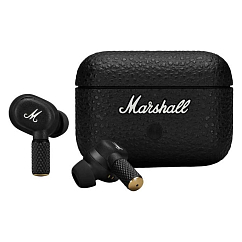
Brand: Marshall
Type of wireless headphones: True Wireless
Bluetooth version: 5.3

Brand: Marshall
Headphone type: wireless
The lowest frequency, Hz: 20

Brand: Marshall
Headphone type: wireless
The lowest frequency, Hz: 20